Right Window Area
In the Right Window Area, you find windows dependent on the currently selected video or videos in the Video Catalog window. This area is to the far right side of the program, pressed on the side to take up as little space as possible.
Video Details
The Video Details window displays metadata or information about the video in text format. The Detail window is where you can edit and add more details about the different videos. Add extra meta-data here that you can use in searches later.
The title is initially the video filename. Right next to the title there is a dropdown to assign a color to the video.
As determined in Preferences, the Go button will open either an external web browser or a browser within Fast Video Cataloger.
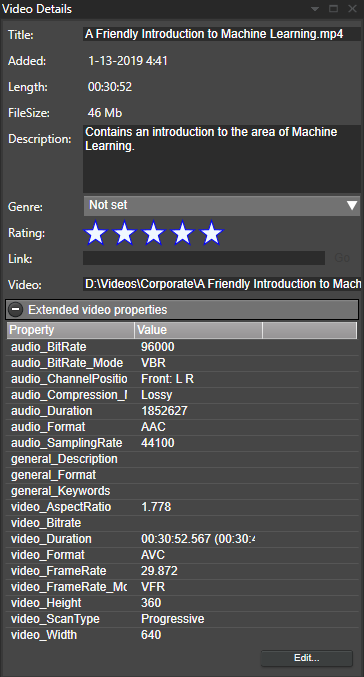
Extended video Properties get extracted from the video file's metadata, like compression, video dimension, aspect ratio, etc. You can also add your properties via the Edit button.
The Extended thumbnail properties show custom properties for the currently selected thumbnails. You can add your properties, like a note, for a specific thumbnail.
You can search for and access extended properties from the C# API.
Actions
From the Actions window, you can perform various actions on the selected video.
-
Play -- Play the video in an external program (set the external player you prefer in File/Preferences/General).
-
Edit -- Edit the video in an external program (set the editor you prefer in File/Preferences/General).
-
Open Folder -- Open a Windows Explorer window to the folder or the video file.
-
Remove -- Remove the video from the video catalog, but do not delete the file.
-
Rename -- Rename the video file and update the video catalog.
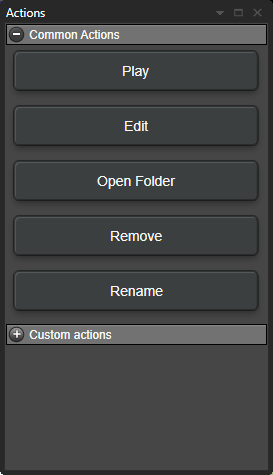
You can also define your custom actions from the front menu. Actions are programmed to perform external processes like running a script or visiting a web page. Therefore, the Actions window has two button lists:
Common Actions are built-in to Fast Video Cataloger, and Custom Actions are Actions you create.
Below the custom actions section, you will find sections with Actions from installed plugins.
Keywording
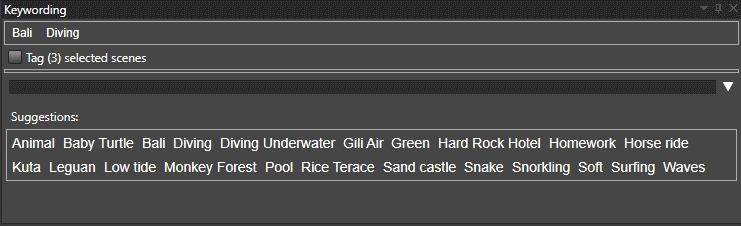
In the Keywording Window, you assign keywords to the entire video and multiple scenes within the video.
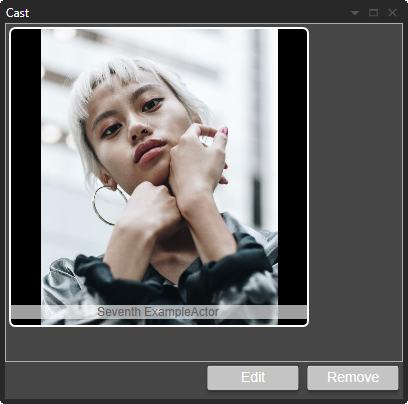
Cast
The Cast is a visual listing of the actors relevant to this video. In the Cast window, you can view and edit actors in the video. To add an actor to the cast, drag the actor from the actors' window.