GUI Tab
The GUI tab (the interface settings) controls how the main windows look and react to the mouse and keyboard.
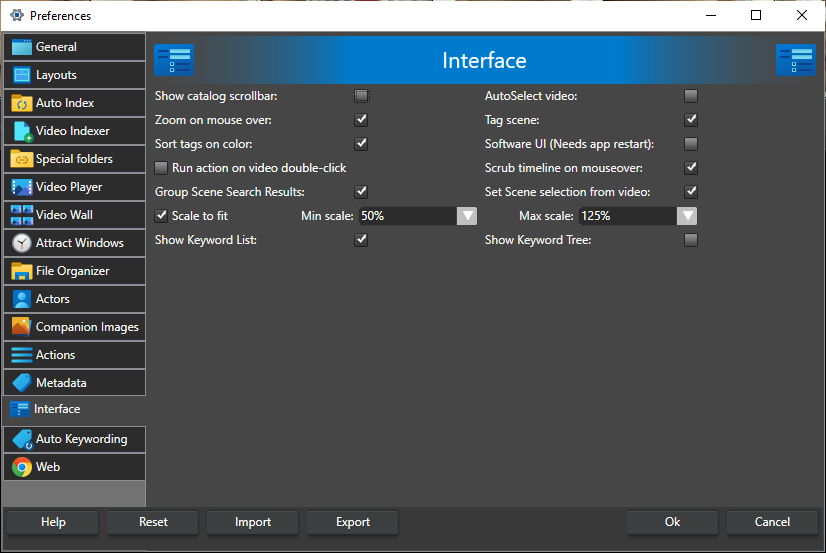
Show catalog scrollbar -- When checked, the Video Catalog window gets a horizontal scrollbar in detailed mode. Off by default.
AutoSelect video -- When checked, moving the mouse over a thumbnail in the Video Catalog window selects that video. Hold down Shift or Ctrl to move the mouse without selecting, for example on the way to another video. When several videos are selected, the selection is kept. Off by default.
Zoom on mouse over -- When checked, video thumbnails in the Video Catalog window and actor portraits grow slightly (to 120%) when the mouse pointer is over them. On by default.
Tag scene -- Whether the Tag scene(s) in video checkbox in the Keywording window is checked when the program starts. On by default.
Sort tags on color -- When checked, keywords are sorted first on color and then on name. When not checked, color does not affect the sort order. On by default.
Keep unused keywords -- When checked, a keyword removed from its last video, scene or actor stays in the catalog, with its color and parent, until you delete it in the Keyword Manager with Remove Keyword. When not checked, a keyword that is no longer used anywhere disappears from the keyword lists. The setting is stored in the catalog, so it applies to everyone who opens it; it is greyed out when no catalog is open or you cannot edit the catalog. Off by default.
Software UI (Needs app restart) -- Render the user interface in software instead of on the GPU. The setting takes effect the next time you start the program. Software rendering is slower, so only use it if you see rendering problems such as flickering or parts of the window not updating. If checking it fixes the problem, we recommend that you update your graphics drivers. This setting does not affect the video player. Off by default.
Run action on video double-click -- When checked, a list appears next to the checkbox where you pick one of your actions. That action then runs when you double-click a video, instead of the video playing in the integrated video player. See How to Create Actions. Off by default.
Scrub timeline on mouseover -- When checked, moving the mouse sideways over a thumbnail in the Video Catalog window steps through the video: the position over the thumbnail is mapped to a time in the video, and the closest captured thumbnail is shown. Double-click to play the video from that time. Hold down Shift or Ctrl to keep the current thumbnail while you move the mouse. On by default.
Group Scene Search Results -- When checked, the results in the Scene Search Results window are grouped per video. On by default.
Set Scene selection from video -- When checked, the selected scene in the Video Scenes window follows the playing video, so the thumbnail closest to the current play position is selected. When you select a scene by hand during playback, the selection stops following the video. On by default.
Scale to fit -- When checked, the scene thumbnails of a selected video are scaled so that they all fit in the Video Scenes window without vertical scrolling, as large as possible within the limits set by Min scale and Max scale. On by default.
Min scale -- Shown when Scale to fit is checked. The smallest scale Scale to fit may use: 20%, 25% (default), 50%, 75% or 100% of the captured thumbnail size.
Max scale -- Shown when Scale to fit is checked. The largest scale Scale to fit may use: 100%, 125% (default), 150%, 175% or 200% of the captured thumbnail size. With 100%, thumbnails are never shown larger than they were captured.
Show Keyword List -- Show the keywords as a list in the Keywording window. On by default.
Show Keyword Tree -- Show the keywords as a tree in the Keywording window. Off by default.
Show Search Keyword List -- Show the keywords as a list in the Search window. This is the same setting as the List box on the Search window's keyword row. On by default.
Show Search Keyword Tree -- Show the keywords as a tree in the Search window. This is the same setting as the Tree box on the Search window's keyword row. Off by default.
Since version 10.3.1 the Keywording window and the Search window have separate list and tree settings. See How to Keyword Videos and How to Use the Search Window.
Show top Menus -- Choose which of the menus at the top of the main window are shown: Start, Views, Layouts and Help. All are shown by default.
View menu: Keep open after showing or hiding a window -- The View menu closes as soon as you show or hide a window in it. Check this to keep it open, for opening or closing several windows in one go. Off by default. The Start, Layout and Help menus always close when you pick something in them.