How to Archive Videos
Why archive videos?
Fast Video Cataloger has a function to archive videos, providing an easy way to put videos files you do not often access onto a secondary storage medium.
Archiving videos with Fast Video Cataloger saves you space on your primary disks while allowing you to browse and search these videos. You will get a perfect overview of where you have packed away your videos, making it easy to find them when needed.
How to prepare secondary storage on an archive medium
An archive location is a folder where you store away video files. A typical archive medium could be a secondary hard drive, a USB stick or USB external drive, or anywhere you can store large video files. To create and manage your archives, click on Start in the menu, Archive, and choose Archive Media Manager. You will now see the Archive Media Manager dialog box:
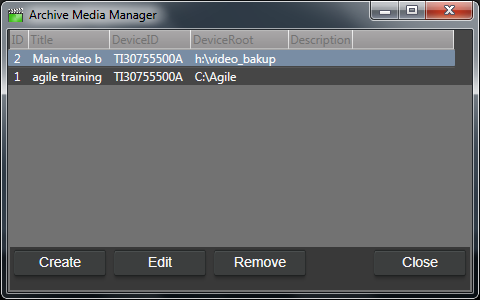
Click "Create" to create a new location or access an existing location to use:
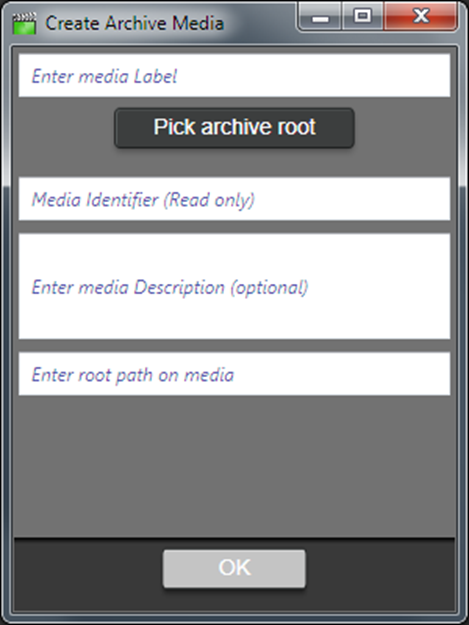
In the Create Archive Media sub-dialog box, browse to the root of your chosen medium, navigate the folder tree (if such exists) to a previously created folder, or click the "Make New Folder" button to create and name home for your Archive. Optionally, you can also write a description of your Archive; or you can do this later.
How to archive videos to an archive medium
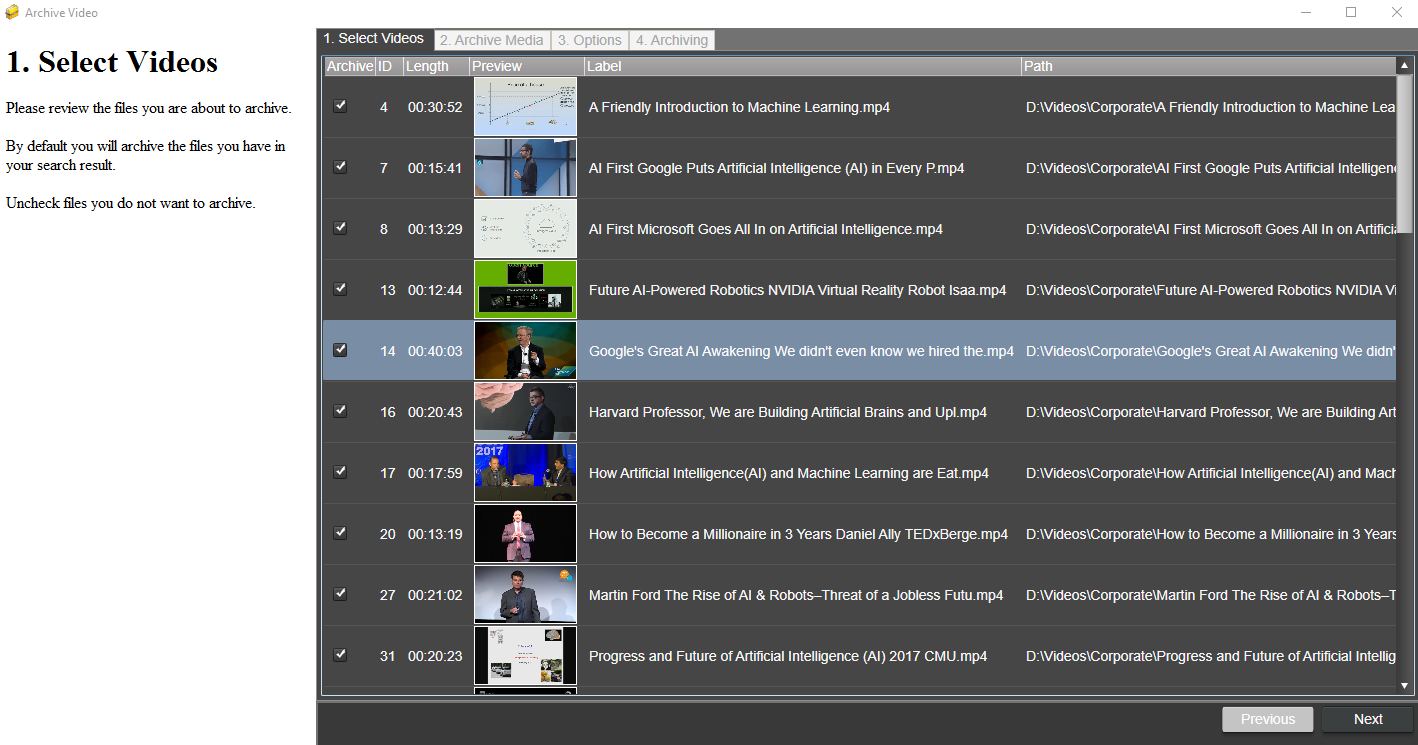
To Archive, specific video files, use the Archive Video wizard. Click on Start in the menu and then Archive, and start the wizard by clicking Archive Videos. The wizard will assume you want to archive all videos visible in your current Video Catalog filtered list.
Note: Before opening the Archive Video tool, it's a good idea to filter your catalog only to include the videos you want to archive.
On the wizard's Options page, Archive companion files takes the files stored beside a video under the same name along with it, such as holiday.nfo and holiday.srt beside holiday.mp4. Those files are read back from the video's own location, so leaving them behind loses the description, keywords and transcript the next time the video is re-read. They follow the same choice as the video itself: copied, or moved when Delete moved files from source is ticked, and renamed with it when Rename to catalog ID is ticked. A companion file is never written over a file already on the archive medium; when one is left behind for that reason, the video's row says so. Companion images registered in the catalog are not archived.
When video files are archived, their path in the Video Catalog gets updated to the archive medium's location. You will also be able to use the filter to browse videos in a specific archive.