How to Mask Videos
How are videos masked?
Fast Video Cataloger has a powerful mask function to hide videos. Masked videos are encrypted and renamed, so only you can view them from the catalog where you masked them. Masked videos will look like random binary files outside of Fast Video Cataloger.
Masking uses AES 256-bit encryption, which is considered pretty strong. We don't claim the masking process is impossible to break, but unless you are an expert, it should provide more than adequate protection. Here is what Wikipedia has to say about AES encryption :
The Advanced Encryption Standard (AES), also known as Rijndael (its original name), is a specification for the encryption of electronic data established by the U.S. National Institute of Standards and Technology (NIST) in 2001.
NOTE: We have no way to help you unmask any masked videos. If you mask videos, it is essential that you keep a backup of the catalog and that you remember the mask password if you changed it. Only you have the password needed to unmask videos you have masked.
How to mask and unmask a single video file
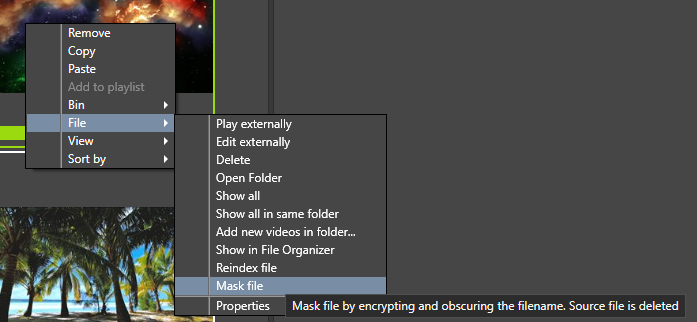
You can mask a video by right-clicking the video in the Video Catalog window and selecting the File/Mask file. A progress bar will show progress. When the masking process is complete, the program will try to delete the unmasked File. The source file's deletion may fail if the video is open in another program or the Video Player window.
To unmask a video, right-click the masked video and select the File/UnMask file from the context menu.
When a video is masked, it gets a new random filename with the .bin extension. The program also creates a .vdh file that only contains the public encryption key for the video file. The public key is also saved inside the video catalog. The ".vdh" File is only needed if you want to add the encrypted video to another catalog.
How to play masked videos and keep your videos safe
The integrated Video Player in Fast Video Cataloger supports decrypting masked videos on the fly. The whole video is never decrypted so even as you are playing a video, there is never a decrypted version of the video in memory simultaneously. Also, the decryption process isn't written to any disk. All in all, for you as the user, it should be pretty transparent whether or not the video is masked. However, since masked files need to be decrypted on the fly, they will require more CPU power.
NOTE: Masked videos will NOT play in external video players.
How to mask videos when they are added to a catalog
The Video Indexer tab in Preferences has an option to mask files as they are added to your catalog. There is also an option to delete the source file after it has been encrypted. If indexing fails, you will still have unmasked videos on your disk.
How to add already masked videos
The masking feature in Fast Video Cataloger is compatible with the masking in the latest versions of Video DownloadHelper ( downloadhelper.net ). You will never have unprotected videos touch your disk if you download masked videos. To add an already masked video to a catalog, you need to add the File with the .vdh extension that contains the video metadata and the public encryption key.
How to change the private key
Fast Video Cataloger has a default private encryption key that gets used unless it is changed. When you create a new catalog, you can change this key. Changing the key increases security as someone would need to know your unique private key combined with the public key to access your files. However, if you forget your personalized private key (mask password), you cannot recover any masked videos. You must ensure both programs use the same key if you use Fast Video Cataloger and the DownloadHelper add-in. The private key can only be set when you create a new catalog.
Warning: We recommend that you do not change the password unless you know what you are doing and really need the extra security.