File Organizer Tab
The File Organizer allows you to manage the videos on your computer while keeping your catalog up-to-date. You can move a video file that is part of your catalog by dragging it from the Video Catalog window to a folder in the File Organizer window. NOTE: To achieve this, you may need to "Float" one of these windows.
Dragging a file from the File Organizer's own file list onto another folder in the same window does the same thing: the file is moved, its catalog entry is updated to the new location, and the Move autotag below is applied. This is the practical route when you want to refile the files sitting loose in one folder, because the file list shows exactly those files.
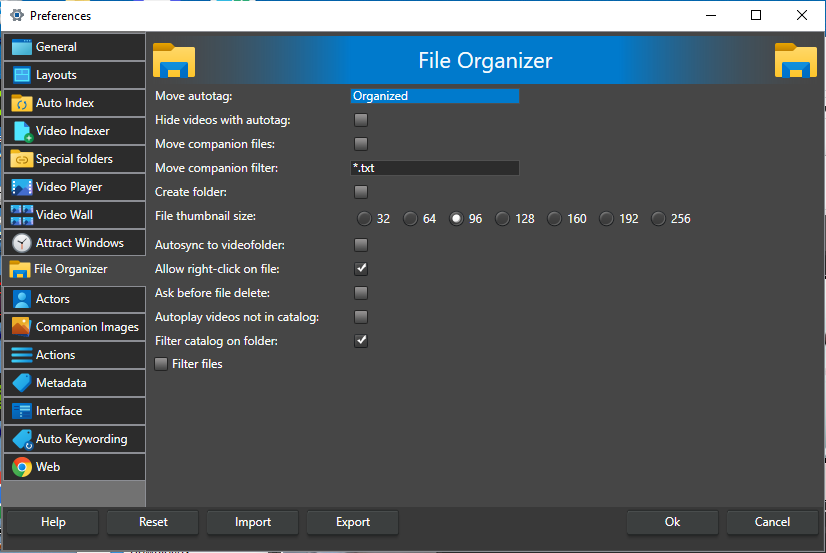
Move autotag -- When a video has been moved, this keyword is automatically attached to the video entry. Default Organized. This is useful when organizing your files, say from an incoming folder to where you store your catalog videos, such as in an auto index folder tree.
Hide videos with autotag -- When this option is checked, auto-tagged videos will be hidden from the Video Catalog window. This is useful if you are sorting videos into different folders and want to distinguish sorted from unsorted files. As you organize your videos into folders, they will be hidden in the Video Catalog window, so you only see the videos left still to be organized. It works by excluding the Move autotag keyword from every search, on top of whatever the Search window is set to, the same as ticking that keyword in the Exclude section of the Search window. Untick the option and press OK, and the auto-tagged videos are back in the Video Catalog window. The exclusion is never written into your saved searches.
Move companion files -- When checked, moving a video also moves its companion images and every file in the video's folder that matches the Move companion filter below. When unchecked, only the video file is moved and its companion images stay where they are. Off by default.
Move companion filter -- A wildcard file pattern for the extra files to move with a video when Move companion files is checked. * matches any number of characters and ? a single character. Every file in the video's source folder that matches the pattern is moved, not only files named after the video, so *.nfo moves all .nfo files in that folder. The pattern is not applied to subfolders. Default *.txt.
Create folder -- With this option ticked, a new folder named after the video's title is created in the target folder, and the video (and any companion files moved with it) is placed in it. No new folder is created when the target folder already has that name. This is helpful if you move companion files with the videos and want all files connected to a video in the same folder. Off by default.
NOTE: When you move a single video and there are no companion files to move with it, the video is moved straight into the target folder without a new folder. When you move several videos at once, a folder is created for each of them.
NOTE: Folder clean-up applies to folders you drag. When you drag a folder, it and its subfolders move with the drag, and any of them the move leaves completely empty is removed automatically, so sorting a collection into place does not leave a trail of empty folders behind. This applies however the settings above are set. The folder you dragged items out of is never removed, even if the move empties it, and a folder that still holds any file or subfolder is never removed, so nothing you have kept there can be lost this way.
File thumbnail size -- The size, in pixels, of the file thumbnails when the File Organizer file list is set to show thumbnails: 32, 64, 96, 128, 160, 192 or 256. Default 96.
Autosync to videofolder -- When you select a video in your Video Catalog pane, the File Organizer pane will show the folder containing the selected video file. Depending on your system and catalog, this can impact the program's performance, especially if you select videos on idle disks that need to initialize. Autosync will only happen when the File Organizer window is open. Off by default.
Allow right-click on file -- On by default. Uncheck this option if Fast Video Cataloger freezes or crashes when right-clicking a file. When this option is ticked, you will invoke the context menu when right-clicking a file in the File Organizer. Opening the file context menu will load all registered shell extensions for the file type. Loading harmful extensions might cause the Fast Video Cataloger to crash or take a long time. These crashes can be hard to diagnose, so simply preventing them from loading might be an easy workaround.
NOTE: If you install a codec pack, please pick the 64-bit version; otherwise, it will not be used.
Ask before file delete -- Show an "Are you sure" dialog before deleting a file in the File Organizer. On by default.
Autoplay videos not in catalog -- When you select a video file in the File Organizer that is not in the catalog, play it in the video player. Off by default. With this off, a video that is not in the catalog is played by the Play video button that appears when you select it.
Filter catalog on folder -- When a folder is selected in the File Organizer, the program will automatically search the catalog and only show videos stored in that folder and the folders below it. This is the same search the Search button runs, so the result appears in the Video Catalog window. Use Reset in the Search window, or Show all on the Video Catalog right-click menu, to see your whole catalog again. Off by default.
Filter files -- Show only the kinds of items you tick next to it in the File Organizer file list. With this off, every file in the folder is listed. Off by default. The three options below are shown only while Filter files is checked; all three are on by default.
Show folder -- When filtering files, list subfolders.
Show video files -- When filtering files, list video files.
Show image files -- When filtering files, list image files.