How to Use the Search Window
When searching for a group of videos or scenes, and if you wish to address a portion of your video catalog, you want to use the Search Window. It is a good idea to create a specialized search layout that fits your workflows and get back to that whenever you need it. The Window can be reshaped and moved just like any other window. The title of the search window displays the number of videos returned by the search.
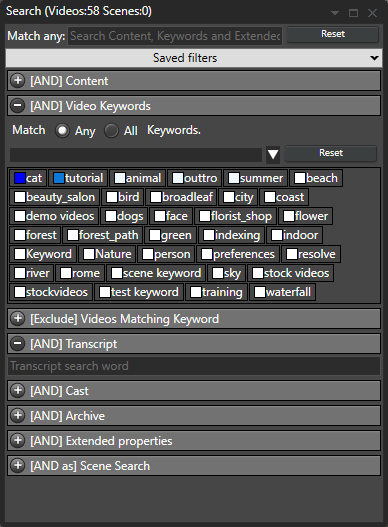
Match any
Match any allows you to search on any keywords, description, extended properties simultaneously. The result will be the videos that match all keywords but for any of the fields. I.e., each keyword needs to match the video on some of the fields. If your search includes space, you can quote a keyword. For example, to search for any video with "summer" in the keywords or the description stored on the f:\ drive, you would enter "summer f:\" as a search string.
Match any is displayed at the top of the search windows, and a "Match any" search cannot be combined with other searches. You can also bring up the match any search with the "ctrl + i" shortcut. Match any is displayed at the top bar, even if the search window is hidden. You can use your arrow keys to navigate through your search history. If you enter the start of a keyword, you may press TAB to complete the keyword.
Filter Videos on Content [Content]
Filter on a word or words in the Title, Description, Link, or File Path
Text in more than one field equals a broader filter.
Using the Genre, Rating and Color filtering options narrows the filter.
AND Color is finds videos with the color labels you click (set them with Color in the video list's right-click menu). Videos with any of the clicked colors match. The gray None swatch finds videos without a color label.
Using multiple filters, such as Content AND Video Keywords, helps make the filter narrower, so you can be more precise. Too narrow, of course, and you may not get anything!
Filter on Keywords [Video Keywords]
This filter allows you to filter on multiple keywords. You can select multiple keywords by holding down the CTRL key.
When the radio button Any is on you, make the filter wider, and with the All Keywords, you make it narrower.
The keywords can be shown as a flat list, as a tree following the parent keywords, or both. The List and Tree checkboxes at the right of the Match row switch them on and off; the choice is remembered and the Keywording window follows it. In the tree, the colour square in front of a keyword shows a tick when the keyword is part of the filter. The Group dropdown restricts the list to the keywords in one group.
Filter on Exclude Keywords [Video Keywords]
This filter allows you to set multiple keywords that should not be assigned to the videos you want in your search result. You can select multiple keywords by holding down the CTRL key.
Filter on Actors [Cast]
Drag actors from the Actors window into the open space for filtering videos involving specific actors. When you include more than one Actor, you make the filter wider.
Transcript
Filter videos on transcripts containing the search word. Note that transcript search matches the whole word and not just part of a word.
Filter on Archive [Archive]
This filter lets you filter to show videos archived to a specific archive media. This filter works on videos you have archived using the archiving functionality. For example, it becomes helpful in browsing only the videos you have archived to a specific USB drive.
Filter on Extended Properties [Extended Properties]
This filter lets you filter to show videos based on your custom-created properties and imported metadata properties like XMP data.
By default, the search will look for the substring you enter. If you click the checkbox next to each extended property search field, you will switch that property to a range search. Range search also makes it possible to search for a specific property value by setting the two ranges to the exact same string.
A range of numbers, such as a width from 1280 to 1920, compares the values as numbers. A property with Date in its name, such as the encoded or recorded date, has date pickers instead of a list: pick one day to find the videos from that day, or tick the range box and pick an end date to find a period such as 2021-03-01 to 2021-03-31. The dates are compared as dates, whichever way the metadata wrote them, and the end date includes the whole day. Other properties that hold dates take typed dates in a range: write them as year-month-day; 2021-03 means the whole month. Add a time, as in 2021-03-04 14:30, to narrow it further. Times are compared as the metadata wrote them, without converting time zones. Values that are not dates are left out of a date range.
When the radio button Any is on, you make the filter wider. With the All on, you make it narrower.
Note: Metadata extracted from video files, like XMP data, is listed as extended properties.
Filter on specific scenes [Scene Search]
When you have your videos and want to find specific scenes in these, you need to check the Scene search. When selecting a keyword, the scenes in only the videos you have your filter on will show in the Scene Search Results window.
When the radio button Any is on, you make the filter wider. With the All Keywords one, you make it narrower. Uncheck List at the end of that row to hide the scene keyword list, for example when you search by description only; keywords already ticked still filter while the list is hidden.
Extended properties search for scenes with extended properties.
The Note field allows you to search for any scene that has a note that contains the search term. You enter scene notes in the video detail window.
Text on screen contains finds the scenes whose frame showed these words, such as a title, a name caption or a slide. The text is read while videos are indexed, or afterwards with Index > Read Text on Screen...; see Text on Screen.
Describe the scene ranks scenes by how well they match a description in words, and Similar to shows a scene chosen with Find similar scenes in a thumbnail's right-click menu. Both need the search index and are explained in Visual Search. The line under the box says how much of the catalog the index covers.
If all other filters are empty, you work with the whole video catalog and look for scenes in all videos.
Saving Filter
If you know you want to do a specific filtering, you can often save that filter and pick it from the Saved Filters drop-down menu to save time. The Saved filters menu is folded at the top of the Search window

The procedure of saving a filter is straightforward and resembles how you save a file in Windows. The save button will overwrite the current filter and Save as it prompts you for a new filter name.
Filters are saved in the catalog file.