How to Manage Your Keywords
You manage your keywords from the Keyword manager.
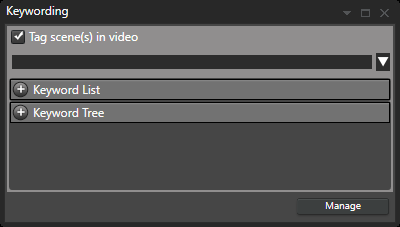
Open the keyword manager dialog from the Manage button in the keywording window.
In the keyword manager dialog, you can see the uses of keywords and assign extra properties to them, like a description or a color. You can also remove keywords from the catalog. When you remove a keyword, it will also be removed from all videos/Scenes, and actors.
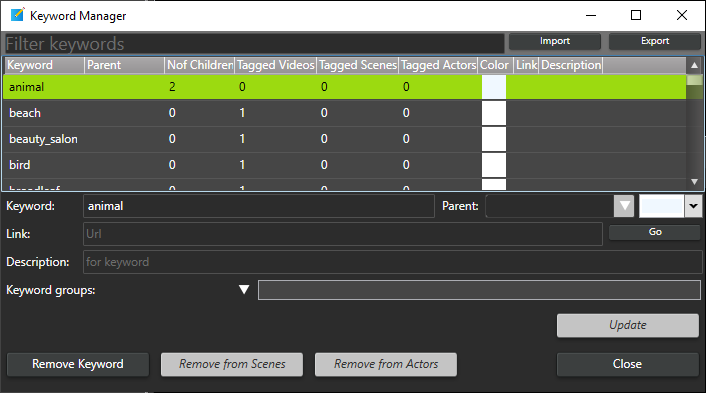
At the top of the dialog, you have a filter. Enter text here to filter the list to only show keywords that include your written filter text.
When you have changed any property for a keyword, you commit the change by clicking Update. If you close the dialog without clicking Update, the keyword will not change.
Keywords can have colors. Assign a color to a keyword by selecting the color from the color picker and clicking Update. Colors can make it easier to find commonly used keywords. Set whether to sort keywords by name or group by color in the Preferences.
You can set up keywords in a hierarchy. You can assign a parent keyword to a keyword from the keyword manager. Select a keyword from the Parent dropdown menu and click Update to update the keyword. Each parent is considered a more generic keyword.
When assigning keywords in a hierarchy, you only need to assign the most specific one. You can still find the video when searching for the parent keywords.
Video and scene keywords can be added to groups. Groups are used in the list view to filter the keywords in a catalog. To assign a keyword to a group, write a group name in the keyword groups text field and press Enter to add the keyword to the list of groups for the keyword. Click Update to update the groups for the keyword.
Groups are only beneficial if you have a lot of keywords in your catalog. A keyword can be in more than one group. Note, only video and scene keywords can be grouped.
When possible, prefer to setup your keywords in a hierarchy and use groups for filtering when you have an extensive list of keywords. When keywording and searching, you can list keywords in either a list or a hierarchy. Groups will only filter your keywords when viewing a list.
To delete or rename a group right click the group name in the dropdown.