Use the HTML Client
The HTML client is a browser-based interface for accessing your video catalog without installing the Fast Video Cataloger desktop application. It lets you browse, search, play, tag, rate, and upload videos from any device with a modern web browser. This is useful when you want to give team members or reviewers quick access to your catalog without requiring them to install software.
Accessing the HTML Client
The HTML client is served by the built-in HTTP server. To use it, the server must be running. See Host Video from a Web Server for setup instructions.
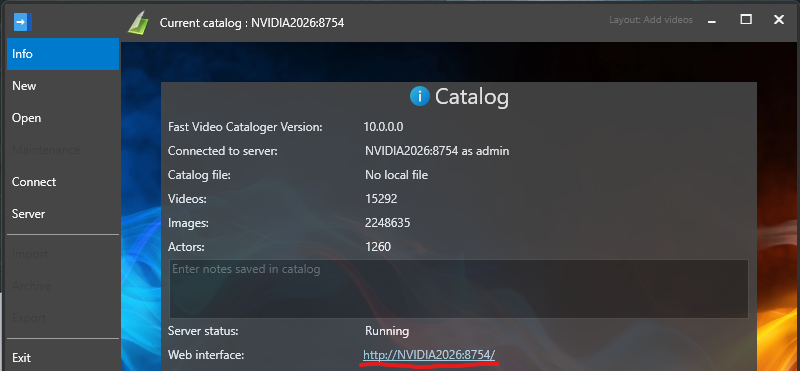
Open a web browser and navigate to the server address, for example http://YourComputer:8754. The HTML client loads automatically.
Note
The server address is displayed when you first set up the server using the Share Video Catalog wizard and can also be found on the Info screen in the desktop application when connected to a server, as shown above.
Logging In
If authentication is enabled on the server, a login screen appears when you open the HTML client. Enter your Username and Password, then click Login.
Your session is saved in the browser so you do not need to log in again until the session expires. To end your session, click the Logout link in the status bar at the bottom of the left panel.
If authentication is not configured on the server, you are taken directly to the video list with full access.
User Roles
There are three user roles that control what you can do in the HTML client:
- Admin -- Full access to all features including viewing, editing, and uploading.
- Editor -- Can view videos and also edit metadata (tags, ratings) and upload new videos.
- Viewer -- Read-only access. Can browse, search, and play videos but cannot modify anything.
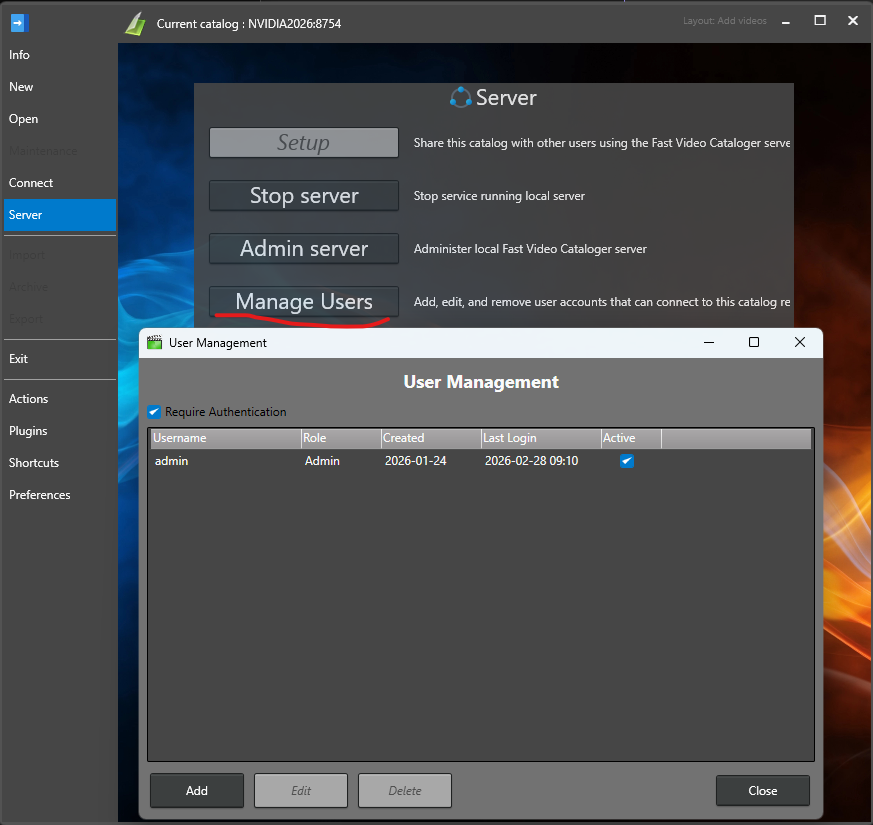
User roles are configured on the server. See Authentication for details on setting up users and roles.
Browsing Videos
The HTML client uses a two-panel layout. The left panel shows a scrollable list of all videos in the catalog. Each video item displays a thumbnail, the video title, duration, and star rating.
Click a video in the list to select it. The right panel updates to show the full details for that video.
The status bar at the bottom of the left panel shows the total number of videos in the catalog. You can collapse the left panel by clicking the collapse button in the status bar to give the detail view more space, and expand it again using the button on the left edge.
Searching Videos
Use the Search field at the top of the left panel to find videos by title. Type your search term and press Enter or click the Search button. The video list updates to show only matching results, and the status bar displays the number of matches found.
Clear the search field and search again to return to the full video list.
Filtering by Tags
Below the search field, the Filter by Tags section lists all tags in the catalog along with the number of videos tagged with each. Click a tag to filter the video list to only videos with that tag. Selected tags are highlighted. Click a selected tag again to remove the filter.
You can select multiple tags and combine tag filtering with a text search to narrow down results further.
Tip
Click the Filter by Tags header to expand or collapse the tag list.
Viewing Video Details
When you select a video, the right panel shows:
- Title -- The video title, or the filename if no title is set.
- Duration -- The length of the video.
- Description -- A preview of the video description.
- Rating -- The current star rating.
- Tags -- All tags assigned to the video, shown as colored labels.
- Thumbnails -- A scrollable row of scene thumbnails with timestamps, showing key frames from the video.
Playing Videos
Click the Video Player header in the detail panel to expand the built-in video player. The player uses HTML5 video with standard browser controls for play, pause, seek, volume, and fullscreen.
You can also click any scene thumbnail to start playback from that point in the video. The currently playing scene is highlighted with a gold border.
Note
Video streaming works best with MP4 files encoded in H.264 format. Older or uncommon video formats may not play in the browser. See Preparing videos files for HTTP server for conversion instructions.
Tagging Videos
If you have an Editor or Admin role, you can add and remove tags on videos.
To add a tag, type in the tag input field below the existing tags and click the + button. As you type, a dropdown shows matching suggestions from existing tags in the catalog. Use the arrow keys to navigate suggestions and press Enter to select one, or type a new tag name and press Enter to create it.
To remove a tag, click the x button next to the tag name.
Rating Videos
If you have an Editor or Admin role, you can rate videos using the five-star rating display in the detail panel. Hover over the stars to preview a rating, then click to set it. Click the clear button next to the stars to remove the rating.
Uploading Videos
If you have an Editor or Admin role, click the + Upload button at the top of the page to open the upload dialog.
- Click the file selection area to choose a video file from your device.
- Enter a Title for the video. The filename is used as a default if you leave this blank.
- Optionally enter a Description.
- Optionally enter Tags as a comma-separated list (e.g.,
interview, 2024, project-alpha). - Click Upload to start the upload.
A progress bar shows the upload status. Once the upload completes, the dialog closes automatically and the new video appears in the video list.
Note
Uploaded videos are indexed automatically using the indexing settings configured on the server. To change how thumbnails are generated or how often key frames are captured, adjust the settings in the desktop application on the machine running the server.
To cancel, click Cancel or press Escape.
See Also
- Host Video from a Web Server -- Set up the built-in HTTP server.
- Share a Catalog Using the Server -- Share your catalog with other users.
- Connect to Server -- Connect the desktop application to a server.
- REST API -- Access the catalog programmatically.