How to Share a Catalog Using the Server
The fast video cataloger server makes it possible for more than one user to access a video catalog simultaneously. The server is included when you install the software.
The server controls all the access to the vcat file i.e., all metadata about the catalog. The actual video and image files are accessed using a Windows share or using a standard web server. If you are all on a local network, the Windows share is preferred. It is faster and will support older video formats. If you need to connect over the public internet, you will need to host your video files through a web server. We recommend Apache server or iis. When hosting over a web server, older video formats will not work, and the video files need to be visible to the webserver (i.e., they need to be in the www root).
For access, you also need to allow the server through the Windows firewall and make sure the connection is not blocked by other security software.
Open the Start menu and select Server
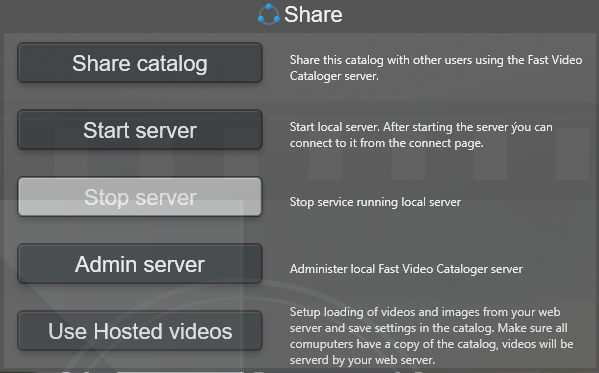
"Setup" opens the Share Video Catalog wizard, which will help you step by step with everything needed to share the catalog using a web server or a Windows share.
"Start server" will startup the server if it has been configured before using the "Share Video Catalog" wizard.
"Stop server" will stop a running server. If you want to load a local vcat file, you first need to stop the server if it is being hosted.
"Admin server" is for advanced users only and will open a tool to edit the server configuration file and troubleshoot issues.
Sharing using windows share
First, open the video catalog you want to share. Then go to the Start menu's Server page and click "Setup" to start the wizard.
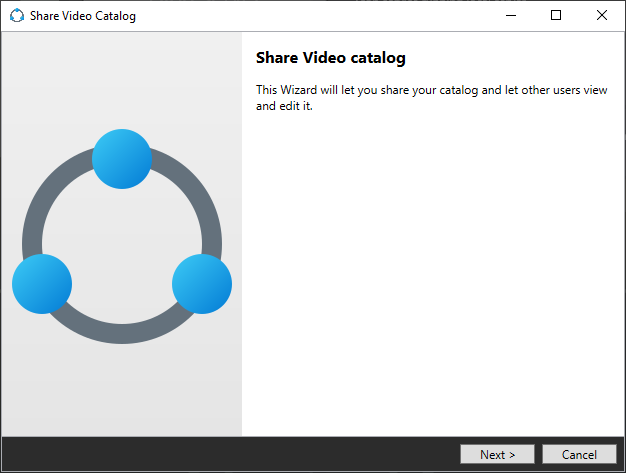
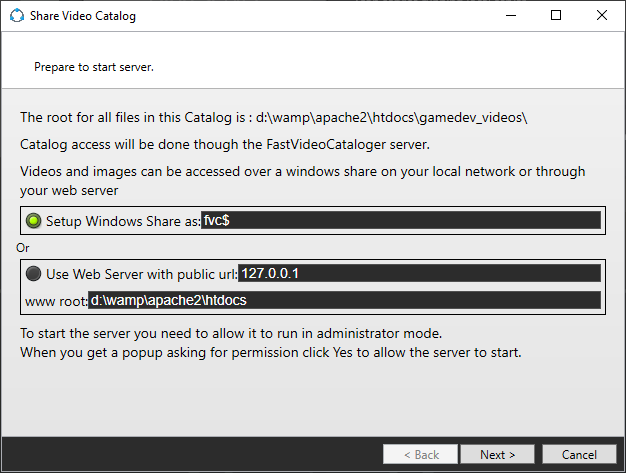
Select the first radio button to share the catalog over a Windows share. You can change the name of the share if you want to. The $ behind the share name hides it from anyone browsing the computer, but it is still accessible if you know the name of the share.
Windows shares should be enabled by default if you are on a private network. For this guide, we assume that windows shares are enabled.
Videos on a NAS or another network share
If the videos in the catalog are already on the network, on a NAS mapped as a drive letter or added through a \\server\share path, the wizard sees it. The Windows share option is greyed out, since Windows cannot share a folder that is itself on the network, and the recommended option reads Play the videos from their network share. The catalog keeps its drive letter paths. The wizard records what each network drive is mapped to, the server hands out the share path of each video, and every computer that connects plays it straight from the share, so each of them needs access to it.
The server itself runs as a Windows service, and neither your mapped drive letters nor your login to the NAS exist for it. It therefore keeps its own files, the upload folder and the videos that are added to the server later, on its own disk under ProgramData\FastVideoCataloger, and streams those to the clients.
A catalog with some videos on the network and some on local drives works the same way through the built-in HTTP server: the wizard says which shares are involved, the videos on the network are played from their share, and the ones on local drives are streamed by the server. A computer that cannot reach the share falls back to streaming, which only works when the service logs on with an account that has access to the NAS. The web client in a browser always streams.
Click Next to proceed.
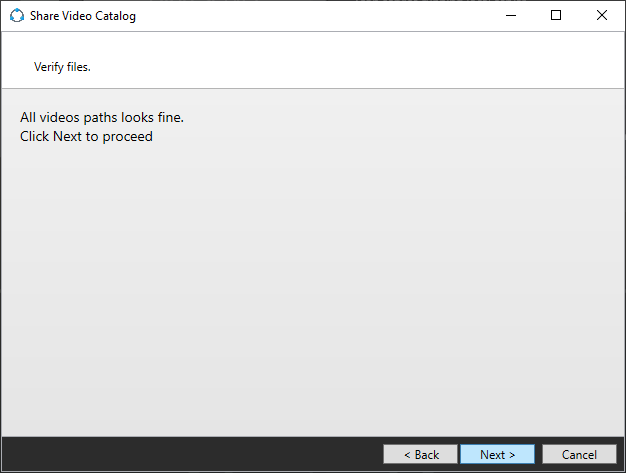
In this step, the wizard checks all files in your catalog to ensure they have a common root folder. This is the path that is going to be connected to the windows share. If you have a catalog that has files on different devices, it is impossible to access it using a single share, and the wizard will let you know. Click next to start the server and create the share.
You will be prompted with a popup asking to give permissions to start the server.
The server runs as a Windows service to start with windows, and it will run even if you do not run the Fast video cataloger program. This is needed to ensure other users can access your shared catalog even if you are not working with it.
If everything goes well, you will see a screen like this:
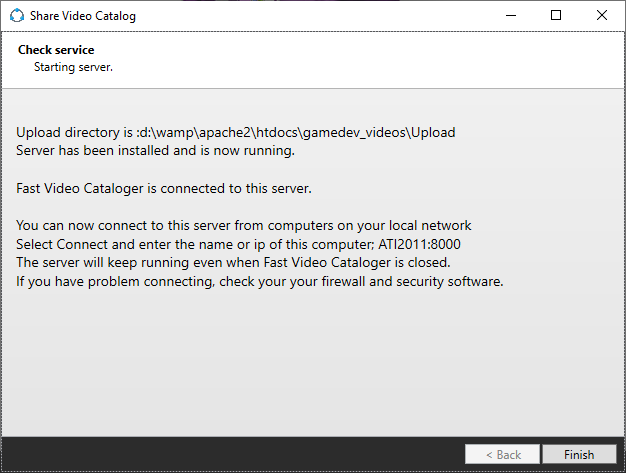
The wizard also locally connected you to the server, so when you browse it now, you go through the server. To connect to this server from another machine. In Fast video cataloger on the other computer, open the connect screen and simply enter the name of the machine and IP, in this example: ati2011:8754 (you can also use the IP of the computer running the server).
Troubleshooting
If you can search and browse videos but not play them, ensure your machine has access to the other machine in the local network. Use windows file explorer and click on the other machine. Depending on your setup, you might need to login to the other computer.
Sharing using a web server
First, you need a web server installed on the computer running Fast video cataloger. We recommend apache (https://httpd.apache.org/) or iis (https://www.iis.net/) that is installed with windows. Assuming you have installed the webserver and it is working.
All video and image files you want to host thought the webserver needs to be below the root ( www-root). They do not need to be in the server's root, but they need to be somewhere below the root folder. There is more than enough information online on how to set up and manage a web server. Make sure to test it by going to http://127.0.0.1 if you want others to access it. Also, make sure to test the server from the computer's public IP and make sure it is not blocked by firewalls or other security software.
Metadata and the video catalog will not be hosted through the webserver. The Fast video cataloger server handles that, so the video catalog files do not need to be in the webserver folder.
First, open the video catalog you want to share with its videos below the www root path. Then go to the Start menu's Server page and click "Setup" to start the wizard.
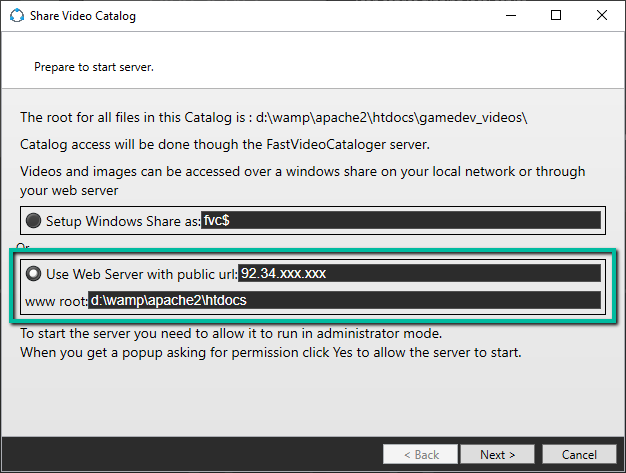
At the top of the wizard, you can see the found root of all videos in this catalog (In this example; d:\wamp\apache2\htdocs\gamedev_videos). This should be somewhere below your www-root folder.
Select the second radio button to share the catalog over a web server.
Hopefully, the wizard has found your computer's public IP and filled this in. If you want to test on localhost, replace the IP with 127.0.0.1. If you have a real domain name for your server, change the IP to the domain name.
The www-root should also hopefully be filled out. It should be the www root of your web server.
Click Next to proceed.
In this step, the wizard checks all files in your catalog to ensure they have a common root folder. It also checks if the files are of formats that are supported over HTTP and give a warning if there are potential problems.
Click next to start the Fast Video Cataloger server.
You will be prompted with a popup asking to give permission to start the server.
The server runs as a Windows service to start when you start windows, and it will run even if you do not run the Fast video cataloger program. This is needed to ensure other users can access your shared catalog even if you are not working with it. And it ensures that your server gets up and running again quickly if the computer reboots.
If everything goes well, you will see a screen like this:
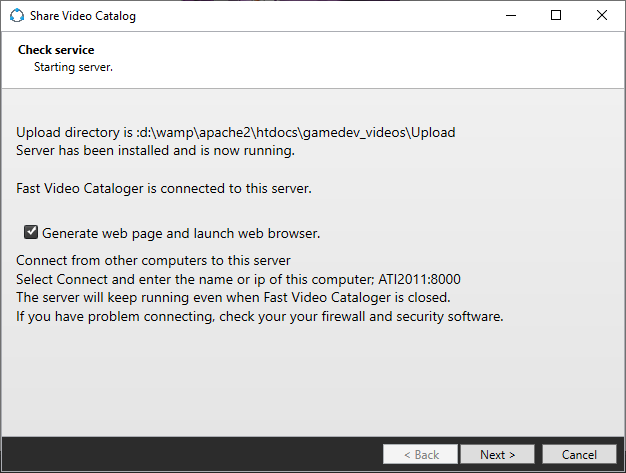
The wizard also locally connected you to the server, so when you browse in Fast video cataloger, it will go through the server.
Here is how you connect to this server from another machine.
Fast video cataloger on the other computer, open the connect screen and enter the machine's name and port. In this example: ati2011:8754 (you can also use the IP/URL of the computer running the server).
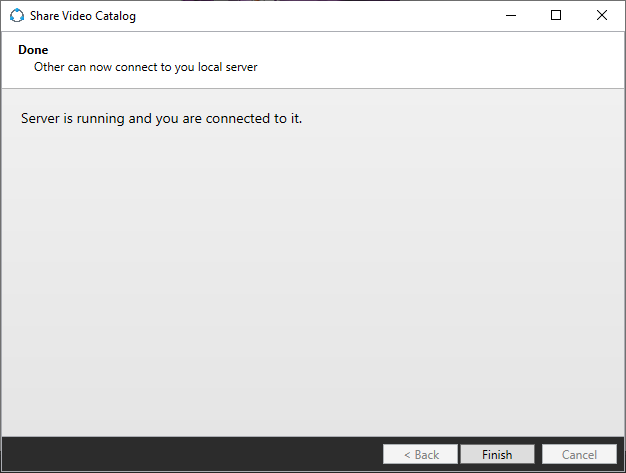
Suppose you check the checkbox on this page and click next. A sample web site is generated on your web page. This same web page uses the fast video cataloger rest API to access the database from a standard web browser. The browser page will also be opened.
The web page is pretty simple, and we only use jquery and no other frameworks. The purpose is to serve as a template for using the API to integrate into your web site or other web software. The rest API and web page are still beta and are subject to change in future releases.
Adding videos to a server
When connected to the server and add a video, that video needs to be uploaded to the server first. While the file is being uploaded, it will be saved in the upload folder. Once it has completed uploading, it will be copied to a folder named as the id of the video. Companion images will also be uploaded and copied to the video folder.
Tip: If you are adding videos locally, ensure they are below the server's shared root so you can skip the upload step.
Switching between a server and local files
Using the same video catalog file directly and using the server is possible. You can switch between running through the server and using the file directly. It is NOT possible to have the server open and then load the vcat file in the program.
When you are running through the server, it will slow down functions, especially video playback.
When the program is connected to a server, some functions are not available. These are connected to file operations and maintenance of the video catalog, like the clean and repair functions.
Working with more than one catalog
A server hosts exactly one catalog, the one written into its configuration file when you ran the wizard. That does not stop you from keeping several catalogs on your machine.
Opening a different catalog in Fast Video Cataloger has no effect on the server. The server keeps serving the catalog it was set up with, connected clients carry on as before, and the program simply works on the local file you opened. The one thing to avoid is opening the hosted catalog itself as a file while the server has it open, as described above.
To change which catalog the server hosts:
- Open the catalog you want to share in the program.
- Either run "Setup" again from the Start menu's Server page, or open "Admin server" and browse to the new catalog file.
- The service is restarted with the new catalog. Connected clients need to reconnect.
There is no need to edit or swap serverconfig.xml files by hand. The server reads its configuration only when it starts, so a hand edited file also means restarting the service yourself.
One machine runs one server, because the configuration file has a fixed location. If you need two catalogs shared at the same time, you need a second computer running its own server.
AI features on a shared catalog
When the server indexes videos it runs the same AI options you set in Preferences > AI Classification — scene classification, object detection, image tagging, trained tags and the visual search index. The wizard copies those settings into the server's configuration, so change them in Preferences and run "Setup" again for the server to follow.
The models themselves come from AI Models on the machine that runs the server. Download them there and the server finds them, whatever user account downloaded them. Nothing needs copying by hand.
Note: before version 10.4 the server only found a downloaded model if the wizard happened to run afterwards. If you shared a catalog with an older version and the AI added nothing, run "Setup" once more.
Clients do not borrow the server's models. Each computer needs its own download for anything it runs itself, which for a client is searching by description — see Shared catalogs.
The server writes what its AI did, and every model it could not load, to VideoIndexingService.log
in the program folder. That file is the place to look when indexing finishes but no keywords or
search results appear.
Troubleshooting server issues
If a .vcat file fails to open, ensure the server does not host it. Stop the server from the Start menu's Server page.
Suppose you cannot connect to the server from another computer. Try to ping the computer. Are you on the same network? Are they allowed to communicate? Is there some security or firewall that blocks access?
If you can connect from another computer but files, do not play over Windows share. Is file sharing enabled? Is network discovery enabled?
If no video plays through the built-in HTTP server, the player shows Player Error : FORCE_DIRECT generic 4, and the same catalog plays fine when you open the .vcat file directly, the videos are most likely on a NAS or another network share the server cannot reach. The server is a Windows service running as Local System, which has neither your mapped drive letters nor your login to the NAS. Run the Share Catalog wizard again: it records what your network drives are mapped to, and the videos are then played from the share. See Serving media, Troubleshooting in the server documentation for running the service under an account with access, which the web client needs.
If you can connect from another computer but files, do not play over the HTTP server. Are files in supported formats? Old video formats will not work over HTTP? Can you connect to the webserver from a web browser? Can you access the video directly if you enter the URL in a web browser?
Preparing videos files for HTTP server
If you want to stream videos over a normal HTTP server, we recommend using mp4 files in h264 format. Conversion of video files that can be streamed can be done with the free, open-source ffmpeg software with the following command line
From another video format:
ffmpeg -i input_video.avi -c:v libx264 -crf 22 -c:a aac -movflags faststart output_video.mp4
if the file is already in mp4:
ffmpeg -i input_video.mp4 -c copy -movflags faststart output_video.mp4
The -movflags faststart parameter tells ffmpeg to reorder the MP4 video atoms so that moov is at the start (this will reduce the bandwidth needed to stream the file). We are also instructing ffmpeg to copy the video and audio data instead of re-encoding them, so nothing gets altered