How to Create Actions
Actions are a way to extend and automate in Fast Video Cataloger.
There are several different types of actions. Once created, Actions are listed in the Action window and accessed from the Action Window once created.
You can assign shortcuts to your actions from the Shortcuts dialog.
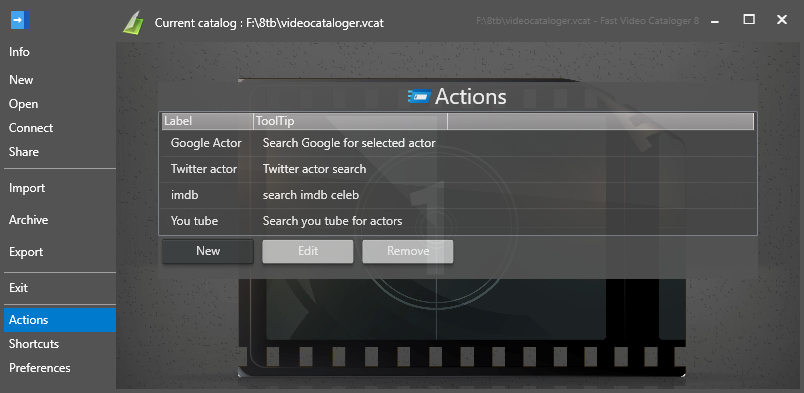
Actions are created on the front screen. Open the File menu, the one with the catalog name on it, and choose Actions. The actions you already have are listed there, with New, Edit and Remove beside them.
Actions used to be created from the Actions tab in Preferences. That tab now only holds one preference for actions, Show Common Actions, and says so.
Click New to create a new action.
Click Next to start the Wizard
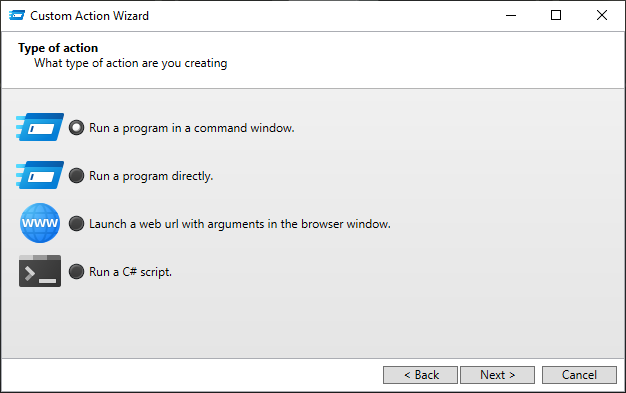
There are Four different types of actions you can create.
-
You can run an external program in a cmd prompt.
-
You can run an external program.
-
Launch an url in a web browser.
-
Run a c# script.
Pick the action type you want to create and then next.
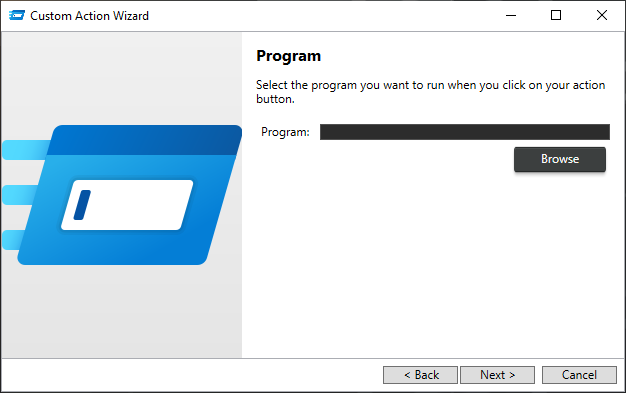
Enter the path or url you want to execute as your action. If you are running a program the path should be to an executable, if you an url it should be a complete path and if it is a c# script it needs to be the path to the script.
For a c# script there is also a Run on worker thread checkbox on this page.
Leave it unticked and the script runs on the user interface thread, which is what you want if the script shows anything of its own - a message box, a confirmation, a window. Fast Video Cataloger waits for the script to finish, so a long script leaves the program unresponsive while it runs.
Tick it and the script is handed to a background thread instead, and the program stays responsive. Nothing is marshalled back to the user interface thread for you, so a script that opens a window or a dialog from a ticked action is not safe - background threads cannot have a user interface. A script that fails on a worker thread also fails quietly, with nothing shown.
If you want a long script that does not block the program, the better way is to leave the checkbox alone and await the slow part inside the script instead. See Running scripts in the background.
When you have entered the path click Next.
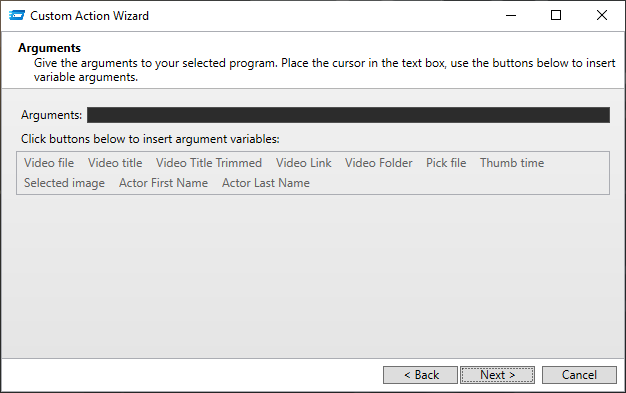
Next, you can provide arguments for the program.
The arguments can be any text you provide, but they can also be variables that will be replaced depending on what is selected in Fast video cataloger when the action is executed.
For example, if you enter the path to an external video player, you might want the path to the selected video as an argument. The available arguments are listed as a button, click the button to add them as arguments.
Use the options under the Arguments tab to introduce independent arguments to the program or the web page.
If your action is to execute an external program, the arguments will be passed as command-line arguments to the program.
If your action opens a web page, then your argument will be added to the URL after an implicit ? Character.
The buttons underneath can be used to add variable arguments based on your current selections in the program.
Video file -- This is replaced with the full path to the first selected video file. This is most useful when running external programs.
Video title -- This is replaced with the title of the first selected video.
Video title trimmed -- Uses heuristics to crop the end of titles from extra information like resolution, time.
Video link -- This is replaced with the link of the first selected video.
Video folder -- This is replaced with the path to the folder where the video is.
Pick file -- This will open a file browser to let you browse for a file path.
Thumb time -- The time of the first currently selected thumbnail.
TIP:* Thumb time* is useful when using an external video player.
Actor First Name -- Is replaced with the first name of the selected actor in the Actors window.
Actor Last Name -- Is replaced with the second name of the selected actor in the Actors window.
Selected Image -- This is replaced with the currently selected companion image.
When you have entered your arguments, click Next.
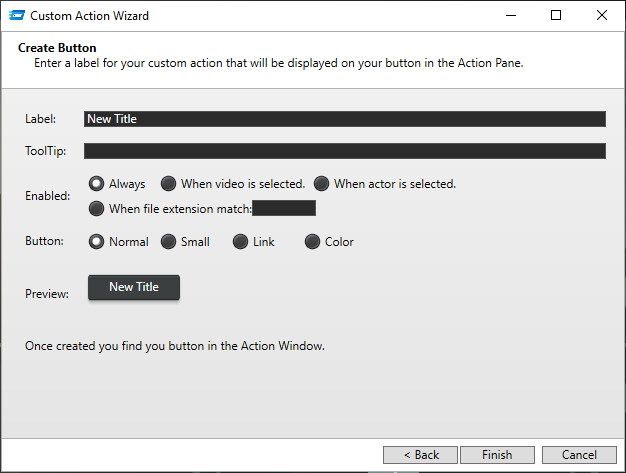
The last step is to design the button listed in the action window. The text you enter as a Label will be the text that is displayed on the button in the Action window.
Enter a ToolTip to describe what the action will do. The text is displayed when you hover over the button in the Action window.
Enabled lets you pick a few options for when the button should be enabled or disabled.
The button setting allows you to control the style of the action button.
At the bottom of the dialog is a preview of your action button.
Click Finish to create the action and add the button to the action window.
Actions are stored with your preferences and are not dependent on the current catalog.
For running programs, the recommendation is to run through the shell first. And later change to "Run program directly" when you know everything works.
Special Actions
On the Action page, you can set three special actions. You set the actions by selecting one of your actions from the drop-down menu. To clear an action, right-click and select the "Clear" menu option.
Startup action, is an action that runs at the end of application startup when the catalog has loaded and all windows have initialized. There is also a command-line argument to set a startup action.
Shutdown action, is an action that is run at the start of shutdown before any of the windows have started to shut down. The shutdown will not commence until the shutdown action is complete.
Pipe action, is an action that is triggered externally from a pipe call. When an external program sends a text string to the Fast video cataloger, that text string will be passed as the argument string to the script of the action you have selected.
With Fast Video Cataloger, we have included fvc.exe, a simple command-line program that sends text to the pipe action. fvc.exe is in the root of the installation folder.
Use it from the cmd line, fvc.exe [Text string to send to the action]
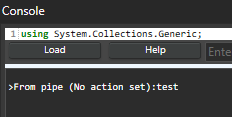
When no pipe action is set, the text will be sent and printed in the console window for testing purposes.
If you encounter an error stating "Access to the path is denied," then the Fast Video Cataloger has higher privileges than the caller. This can happen when the Fast Video Cataloger is run from the installer.