Getting Started
# Getting started in less than 3 minutes
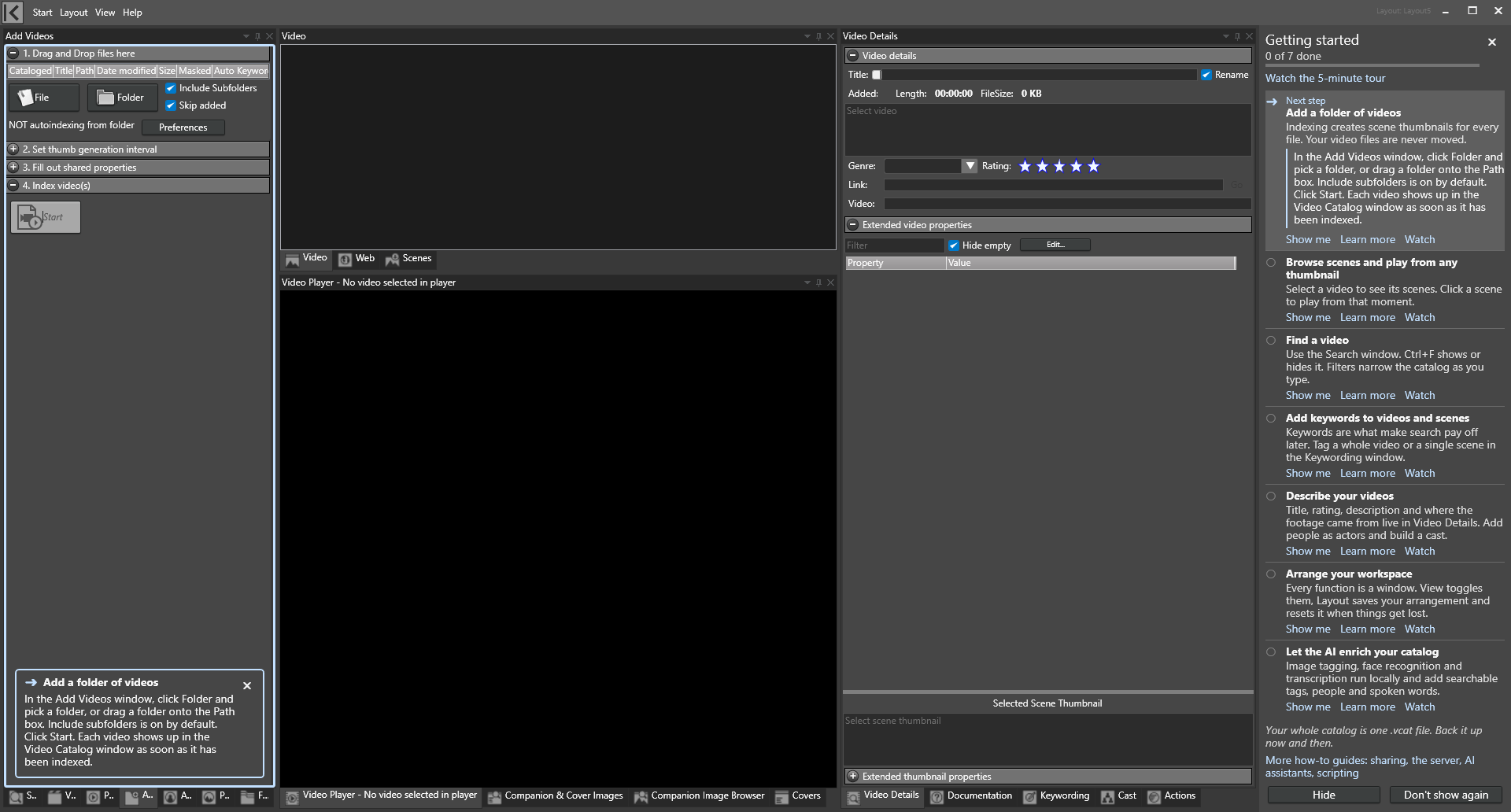
When you create your first catalog, Fast Video Cataloger opens the Getting Started panel beside the work area, a seven-step checklist that ticks itself off as you add videos, browse, search and keyword. Each step has Show me, Learn more and Watch links. Hide closes it for now and Don't show again closes it for good; the Getting started button in the Help window brings it back. Use the panel or follow the 3-minute beginner's guide below for your first video catalog.
-
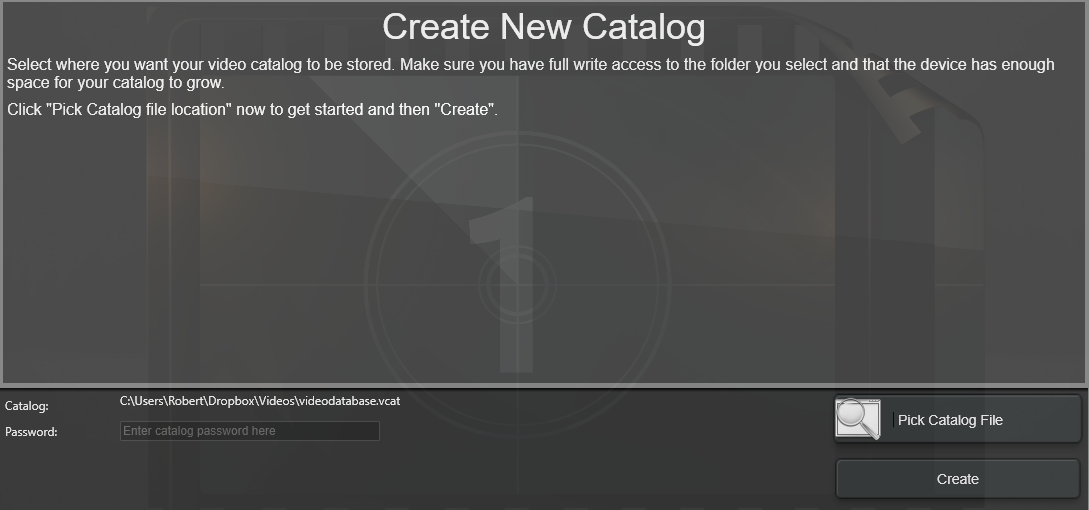
Select New... to bring up the Create new catalog dialog.
-
Click the Pick Catalog File button to choose a folder location and name your new video catalog. The default name is videodatabase.vcat.
-
Once back in the Create new catalog dialog, click Create to create your empty video catalog.
- Locate the Add Videos window. This is where you add videos to your video catalog.
Note: A video catalog file only contains metadata for your videos. The video files are not touched. Uninstalling FVC will not delete your catalog files.