Video Indexer Tab
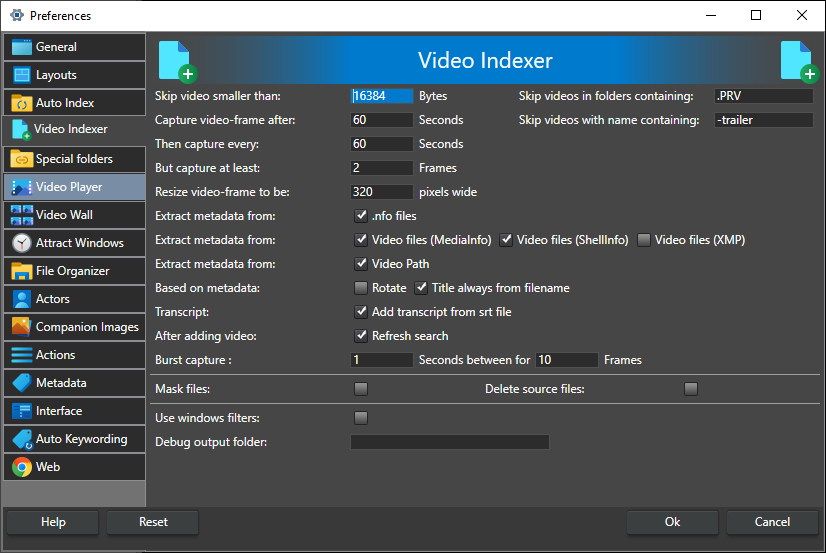
The Video Indexer tab controls what happens when videos are added to the catalog: which files are skipped, how many thumbnails are captured and at what size, what metadata is read, and which analysis runs on the captured thumbnails. The tab scrolls; the settings below are listed in the order they appear.
Skipping files
Skip video smaller than -- Files smaller than this number of bytes are not indexed, even if they look like videos. The default is 16384 bytes.
Skip videos in folders containing -- Videos whose folder path contains this text are not indexed. It is one piece of text, not a list, and it is matched against the whole path without regard to case, so subfolders of a matching folder are skipped too. The default is .PRV, so no videos are indexed from a folder called movies.prv.
Skip videos with name containing -- Videos whose file name contains this text are not indexed, without regard to case. The default is -trailer, so a video named movie-trailer.mp4 is skipped.
Thumbnails
Capture video-frame after -- How many seconds into the video the first thumbnail is captured. The default is 60 seconds.
Then capture every -- The interval, in seconds, between the following thumbnails. The default is 60 seconds. These thumbnails are what you see in the Video Scenes window.
One thumbnail per DV clip -- For DV camcorder captures, capture one thumbnail at the start of each recorded clip, found from the camera's recording time, instead of sampling on a fixed interval. It only affects DV files that carry a recording time; other videos use the interval above. On by default. See How to Catalog DV Camcorder Tapes.
But capture at least -- The minimum number of thumbnails per video, whatever its length. When the interval settings above would give fewer thumbnails, for example on a short video, the program captures this many at equal intervals instead. The default is 2 frames.
Resize video-frame to be -- The width, in pixels, of the captured thumbnails; the height follows the video's aspect ratio. Pick 64, 128, 320, 480 or 640 from the list, or type a width between 32 and 1920. The default is 320. 640 is the width the AI features make full use of, so larger thumbnails give better results for face recognition, scene classification and the other AI analysis, at the cost of a larger catalog file.
Metadata
Extract metadata from -- Read metadata from these sources when a video is indexed:
- .nfo files -- Look for an .nfo file next to the video file and read metadata from it. On by default.
- Video files (MediaInfo) -- Read technical metadata from inside the video file with MediaInfo and store it as extended video properties. On by default.
- Video files (ShellInfo) -- Read the metadata Windows shows in a file's Properties in File Explorer and store it as extended video properties. On by default.
- Video files (XMP) -- Read XMP metadata from inside the video file and store it as extended video properties. XMP is written by video software, for example from Adobe, and can describe the edit and the shot. Off by default. See Work with XMP Data.
- Video Path -- Add keywords taken from the folder and file names in the video's full path. On by default. This is the same setting as Add keywords from video path on the Auto Tag tab, where you control how keywords are taken from the path. When you add videos in the Add videos window, a column shows which keywords each file will get.
Based on metadata: Rotate -- Rotate the thumbnails when the video's metadata says it is rotated. This needs Video files (MediaInfo) to be checked. Some phones record the video unrotated and only set this flag, relying on the phone to turn the picture. To play such a video the right way up you also need a player that rotates in real time; the Direct + madvr player on the Video Player tab does. Off by default.
Title always from filename -- Always use the file name as the video's title. When unchecked, a title found in the metadata is used instead, if there is one. On by default.
Transcript
Add transcript from srt file -- Look for a subtitle file next to the video, with the same name and the .srt extension, and add it as the video's transcript. On by default.
Enable speech-to-text transcription -- Extract the audio and create a transcript with speech-to-text while indexing. Off by default. See Transcribe Videos.
Spoken language -- Shown only when Enable speech-to-text transcription is checked. The language spoken in the videos. Auto-detect decides from the start of each video, which can pick the wrong language when a video opens with silence, music or a tone; choose the language when you know it. While an English-only speech-to-text model is active, the list is fixed on English and greyed out, and a warning below it says the model only supports English. Download a multilingual model from AI Models to use other languages.
Translate to English -- Shown only when Enable speech-to-text transcription is checked. Writes the transcript in English whatever language is spoken, so a foreign-language video can be found by searching transcripts in English. Spoken language still tells the model what to listen for. Greyed out while an English-only model is active, since that model only writes English anyway.
AI analysis
These options run on the captured thumbnails during indexing. Each one makes indexing slower. You can also run them later on videos that are already in the catalog. Each AI feature needs its model; when a model is not downloaded, a model not downloaded link is shown next to the checkbox and opens AI Models on that model. Until the model is downloaded, indexing skips the feature.
Face Recognition: Auto-detect actors during indexing -- Detect faces in the thumbnails and match them to actors in your catalog. Off by default. Detector settings are on the Face Recognition tab; see also Face Recognition.
Scene Classification -- Classify the scene in each thumbnail and add the result as keywords. Off by default.
Object Detection -- Detect objects in each thumbnail and add them as keywords. Off by default. See Object Detection.
Image Tagging -- Tag the thumbnails with the image-tagging model. Off by default. See Image Tagging.
Trained Tags -- Match the thumbnails against the tags you have taught from example images. Off by default. See Trained Tags.
Visual search index: Build the visual search index while indexing -- Record a compact description of every thumbnail, which Visual Search uses to find scenes by what they show. On by default. It uses the same AI model as image tagging and trained tags. It runs on the graphics hardware, and falls back to the processor, which is much slower, where that is not possible.
Text on screen: Read the text on screen in every thumbnail -- Read titles, captions, slides and signs in each thumbnail's frame with the text recognition built into Windows, so the Search window can find scenes by them. Off by default. Adds about 30 ms per thumbnail. See Text on Screen.
Text language -- The language the text on screen is read in. Windows language uses the language of your Windows account; the list shows the languages Windows can recognise text in.
Scene classification, object detection, image tagging, trained tags and the visual search index are tuned on the AI Classification tab.
Thumbnail cleanup
These options remove thumbnails after the analysis above has run. They do not apply when a single frame is captured.
Remove similar: Remove similar thumbnails -- After indexing, remove thumbnails that look like the previous thumbnail that was kept. This thins out videos with slow-moving scenes or a static camera. Off by default. See Remove Similar Thumbnails for removing them from videos that are already in the catalog.
Threshold -- Shown only when Remove similar thumbnails is checked. How alike two thumbnails must be before one is removed, from 0.50 to 0.99. Higher values are more conservative and only remove near-identical thumbnails; lower values remove more. The default is 0.90.
Remove faceless: Remove thumbnails without faces -- After indexing, remove thumbnails in which no face is detected. It runs after Remove similar thumbnails. A video is never left without thumbnails: if no thumbnail has a face, the first one is kept. Off by default.
Do not remove thumbnails from videos where no faces were detected -- Shown only when Remove thumbnails without faces is checked. When no thumbnail in a video has a face, the video is left as it is, since it is a clip without people rather than a clip with bad thumbnails. On by default.
After adding a video
After adding video: Refresh search -- Run the current search again when a video has been added, so new videos show up in the Video Catalog window. On by default.
Burst capture -- The settings for Burst Capture, which captures a series of extra thumbnails from a point in a video to show that part in more detail. Start a burst by right-clicking a thumbnail in the Video Scenes window and choosing Burst Capture. The first value is the time in seconds between the frames in a burst (default 1); the second is how many frames a burst captures (default 10, range 1 to 255).
Masking
Mask files -- Mask videos when they are added to the catalog. Masked videos can only be played in Fast Video Cataloger, and you need the catalog to play or unmask them, so keep backups of your catalog if you use this. Off by default. See Mask Videos.
Delete source files -- When a video has been masked and added to the catalog, delete the unmasked source file. Only used when Mask files is checked. Off by default.
Troubleshooting
Use windows filters -- Use the DirectShow filters installed in Windows, in their merit order, to capture frames. When unchecked (the default), Fast Video Cataloger uses its built-in filters, which is the safest choice and handles most video formats. Check it if you have installed codecs for a format the built-in filters cannot read. If indexing a video fails, you can change this option and try again.
Debug output folder -- A local folder where the indexer writes debug files. Only fill this in when support asks you to: while it is set the program writes extra files and indexes more slowly. Leave it empty for normal use. The folder must be writable.