Companion Images Tab
The Companion Images tab controls how companion images are found when videos are indexed, which images are treated as covers, and how companion images are shown. As with videos, the image itself is not stored in the catalog, only the path to it. The images are shown in the Companion Images and Companion Image Browser windows.
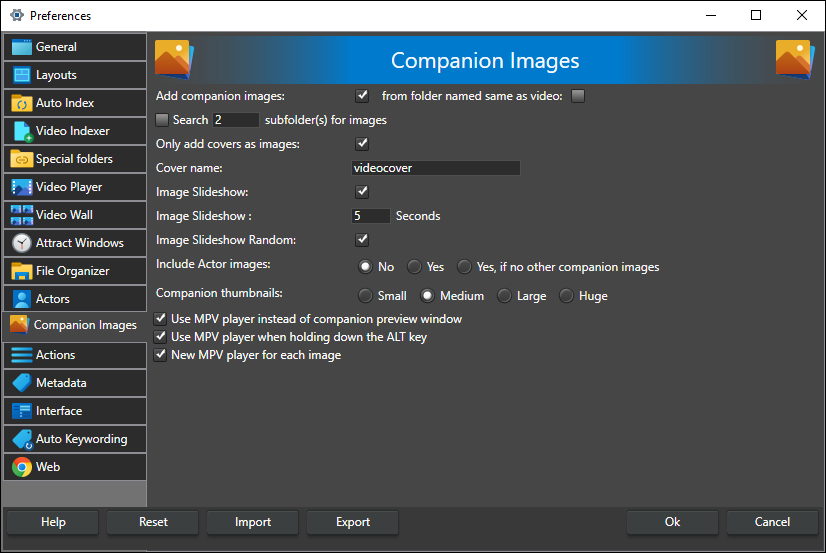
Add companion images -- When checked, images in the same folder as a video are added as companion images to that video when it is indexed, so all videos in a folder get the images from that folder. Images inside zip archives in the folder are added too. On by default.
from folder named same as video -- When checked, the images are taken from a subfolder named the same as the video file (without extension) instead of from the video's own folder. For my.clip.mp4 the folder is my.clip. Off by default.
Search [n] subfolder(s) for images -- When checked, subfolders are also searched for companion images. The number in the box is how many folder levels down the search goes (default 2). The checkbox is off by default.
Only add covers as images -- When checked, only images whose file names mark them as covers are added (see Cover name below). On by default.
Cover name -- An extra file name, without extension, that marks an image as the front cover (default videocover). An image with this name is preferred over the built-in names. The built-in front cover names are cover, front, frontcover, fanart, poster and landscape, and an image named the same as the video file also counts as a front cover. back and backcover mark the back cover. A name matches when it is the whole file name or a word in it, for example movie-cover.jpg. The front cover is also used as the video's thumbnail.
Image Slideshow -- When checked, the companion images play as a slideshow automatically when a video is selected. On by default.
Slideshow time -- How many seconds each image is shown before the slideshow moves to the next one (0-1000, default 5).
Image Slideshow Random -- When checked, the slideshow plays the images in random order. On by default.
Include Actor images -- Whether the companion images of the actors in a video are shown together with the video's companion images:
- No -- Show only the video's own companion images (default).
- Yes -- Always add the companion images of all actors in the video.
- Yes, if no other companion images -- Show actor images only for videos that have no companion images of their own.
NOTE: Including actor images can slow down selection when a video has many actors and many images, since the image list is rebuilt each time the selection changes.
Skip thumbnail images -- When checked, small images are not added as companion images. An image is skipped if its width or its file size is at or below the limits set below, which can only be changed while this box is checked. Off by default.
Max thumbnail width (px) -- Images this wide or narrower are treated as thumbnails and skipped when Skip thumbnail images is checked (1-10000, default 300). The width is checked both when videos are indexed and when you add images by hand, also for images inside zip files.
Max thumbnail file size (KB) -- Images this size or smaller are treated as thumbnails and skipped when Skip thumbnail images is checked (1-100000, default 100).
Companion thumbnails -- The size of the thumbnails in the Companion Image Browser: Small (64 pixels), Medium (128 pixels, default), Large (256 pixels) or Huge (480 pixels).
Use MPV player instead of companion preview window -- When checked, a companion image you open is shown in the external MPV player instead of the companion preview window. MPV is a separate window and is not part of the layout system, so its position is not saved with your layouts. Companion images can be opened from the Companion Image Browser and also from the File Organizer, which can be set to show thumbnails. Off by default.
Use MPV player when holding down the ALT key -- When checked, holding down the ALT key while you open a companion image shows it in MPV instead of the companion preview window. On by default.
New MPV player for each image -- When checked, every image opens in a new MPV window instead of reusing the open one. Off by default.
The MPV player for videos is set on the Video Player tab.