Window Layouts
Arranging windows
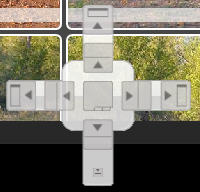
Move a window to a new position in your Layout by moving your mouse pointer to the Window's header and pressing and holding down the left mouse button as you drag the Window. You will now see the docking user interface. Move the pointer to the region where you wish to dock the Window. You can also rearrange a window with the Float and Dock options in the docking menu (see below).
Showing and Hiding windows
You can hide any window by clicking the x in the upper right corner of the Window.
To toggle the visibility of any window, use the View menu and click the button for the windows to show/hide.

Note that the hidden Window will reappear in its default position, not necessarily to where you had last moved it.
To close every window at once and start from an empty work area, click the Close All button in the Layout section of the View menu, or press Ctrl+Shift+Q. This is useful when you want to build a custom layout from scratch. The windows are only hidden — reopen any of them from the View menu and they return to their previous positions, or press Reset to bring back the whole saved Layout.
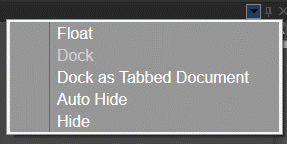
The docking menu (window position)
You bring up the docking menu by clicking the small triangle (  Window Position) next to the Hide (
 ) button in each Window.
Resetting layouts
While working, you may open extra windows or move things around temporarily. To return to the version of the Layout you last saved, select Layout and press the Reset button. Reset restores the currently active Layout to its saved state.
To restore the program's default layout instead, hold down Shift while clicking Reset. If the active Layout has never been saved, Reset also restores the default layout.
Loading and saving user layouts
There are ten user layouts. You select a user layout from the Layout menu or by using the F1-F10 keys. When you close the program, your Layout gets saved automatically.
Save your Layout by clicking the Save button. This action saves the Layout you have into the layout position currently selected.
You can restore a layout to its default state by holding down Shift and clicking the Reset button. Note that the first four named layouts have a different default layout (with the windows you need for the Layout's default name).
You can assign names to your layouts in Preferences.
Tip: The best way to learn how to move and arrange windows in the flexible GUI is to play around with dragging windows.
Tip: Hold down CTRL and press TAB to get a list of all the active windows in your current Layout. Click on a name in the list to open that Window.
Tip: If you have more than one monitor, you are lucky. Use them all to get an even better overview using the flexible Layout.
Tip: Layouts are saved between program runs.