How to Keyword Your Videos
You set keywords for videos and individual scenes in a video from the Keywording Window.
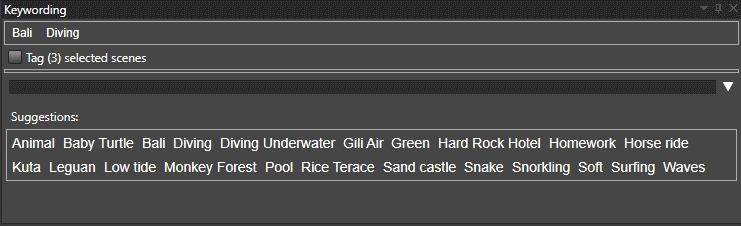
Keywords are applied to all selected videos in the Video Catalog window.
The keywords already used in the catalog are shown as a list, as a tree following the parent keywords, or both, depending on the List and Tree choice made in the Search window or in Preferences. Click a keyword to apply it to the selected videos; click it again to take it off. In the tree, the colour square in front of a keyword shows a tick while the keyword is applied. The Group dropdown above the keywords restricts them to one keyword group.
When the Tag scenes(s) in the video is checked, the current or currently selected scenes will be tagged with the keyword.
Suppose the required keyword does not already exist in your set of previously used keywords (appearing under "Suggestions:"). You can type it into the box provided and press [Enter] to add it. In doing so, not only will the new keyword be added to the selected video(s) or scene(s), it will also instantly appear -- alphabetically sorted -- in your collection of existing keywords for the whole video catalog. It is possible to add more than one keyword at a time only by separating each keyword with a comma ",".
Assigning keywords to individual scenes is a powerful tool and worth the time. This lets you quickly find specific content across different videos for your entire collection. If you work with special effects, for example, and have used the keyword "explosions", you can immediately draw out all explosion scenes in your collection and use them as required.
All individual scenes that have been keyworded will have their time label highlighted in the Video Scenes window. When you hover your mouse pointer over the highlight, a tooltip displays the keywords assigned to that scene.
You can select more than one scene and set shared keywords for all those selected scenes.
You can assign shortcuts to specific keywords from the metadata tab in Preferences.
Tip:* When you play a video, the program automatically shows which scene is playing in the Video Scenes window. When you reach a scene you wish to tag, pause playback at that location and add your preferred keywords from the Keywording Window. Make sure you check the Tag scenes in video* checkbox.