Host Video from a Web Server
Hosting videos from a web server lets you share a catalog without distributing the video files themselves. A video catalog is typically a few gigabytes and easy to distribute, while the video files can take up terabytes of space. Users with a local copy of the catalog can search and browse quickly. When they want to play a video, only the relevant portion is streamed over HTTP.
Built-in HTTP Server (Recommended)
Starting with version 10, Fast Video Cataloger includes a built-in HTTP server that can serve videos, companion images, and actor photos directly. This is the recommended way to host video files and does not require installing any external web server software.
Set Up Using the Wizard
Open the Start menu, select Server, and click Setup to launch the wizard.
On the first page, select Built-in HTTP server. This option is pre-selected by default. The wizard detects the common root folder of your video files automatically. If your videos are spread across multiple drives with no common root, the built-in server is the only option that works — it uses ID-based streaming to serve files from any location.
Click Next to verify your video files. The wizard checks for formats compatible with browser-based playback and warns about older formats that may not stream reliably. MP4 with H.264 is recommended.
Click Next again to install and start the server. The wizard installs the Fast Video Cataloger server as a Windows service, configures the firewall, and connects your application to the server. You will be prompted to grant elevated permissions.
When setup completes, the wizard displays the server address (e.g., YourComputer:8754). Other users can connect to this address from the Connect screen in their copy of Fast Video Cataloger.
What the Built-in Server Provides
Video, image, and actor photo hosting -- All files are served directly over HTTP from their original locations on disk. There is no need to copy files to a special folder.
Authentication -- File access requires a valid session token. Users must be connected to the server through Fast Video Cataloger to access files.
Web interface -- A browser-based interface is available at the server address for viewing the catalog, tagging videos, and uploading new files.
REST API -- The full scripting API is available over REST. API documentation is served at /api/docs.
To manage the server after setup, use Start Server and Stop Server from the Start menu's Server page, or open Admin Server for advanced configuration. See Share a Catalog Using the Server for details on sharing workflows and troubleshooting.
External Web Server
If you prefer to use an external web server such as IIS or Apache, the original hosting method from version 9 is still available. This approach requires more manual setup but gives you full control over the web server configuration.
Set Up a Web Server
You will need a web server installed and running. Windows comes with IIS preinstalled, but it must be enabled through Turn Windows features on or off in the Control Panel.
Apache HTTP Server is another option. Refer to the web server documentation for installation and configuration instructions.
Prepare the Web Root
Once your web server is configured, locate its root directory where files are served from. For IIS this is typically C:\inetpub\wwwroot\, and for Apache with Bitnami WAMP it is something like C:\wamp\apache2\htdocs\. All videos you want to access over the web server must be placed below this root folder.
Not all video formats can be streamed over HTTP reliably, especially older formats. We recommend using MP4 files on the web server.
Configure Fast Video Cataloger
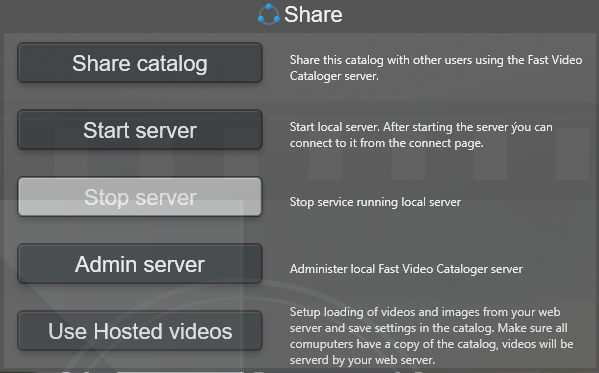
Open the Share screen and click the Use hosted videos button.
www root -- Enter the local path to your web server's root directory.
Server URL -- Enter the URL of the server as accessed through a browser. For a local server this would be http://localhost/ or http://127.0.0.1/.
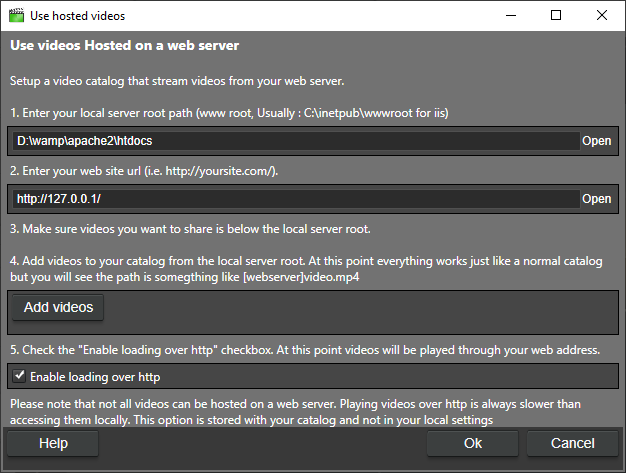
Add Videos
Add videos from your web root to the catalog the same way as usual from the Add Videos window. When you select one of these videos, the path will appear as something like [WebServer]\video_indexer.mp4.
Playing the video at this point uses the local web root path. This works similarly to how special folders resolve paths.
To load the video over HTTP instead, open the Use hosted videos dialog again and check Enable loading over HTTP. After enabling this, videos are streamed through requests to the web server. This setting is saved in the catalog, so if you share it with someone else the web server paths resolve to the same URL for them as well.
Note
Fast Video Cataloger works most efficiently with local video files. Only host through a web server when users do not have direct access to the files.