How to Use Keyboard Shortcuts
These default keyboard shortcuts make your work faster. Try it out.
| Key | What this key does |
|---|---|
| CTRL + I | Display a generic search bar |
| CTRL + N | Create a new catalog |
| CTRL + O | Open an existing catalog |
| CTRL + SHIFT + O | Open the connect to server dialog |
| CTRL + P | Show Preferences window |
| CTRL + Q | Create a new actor |
| CTRL + E | Edit selected actor. Checks the Actor Window first, then falls back to the Cast Window selection. If no actor is selected in either, opens the new actor dialog. |
| CTRL + W | Add actor |
| HELP | Display the help |
| F1 -- F8 | Switch to Layout 1 -- 8 |
| CTRL + F | Display the Filter options |
| CTRL + K | Shows the keywording window |
| CTRL +F5 | Refresh all windows |
| ALT + Delete key | Stops playing the video |
| ALT + Space key | Pause/Play OR Play video from the start if the video is not playing |
| CTRL + S | Add current video frame as video scene thumbnail |
| ALT + Enter | Toggle full-screen mode |
| Esc | End full-screen mode |
| Hold Ctrl | Before pressing the Forward or Backward video player buttons to slow forward/rewind. |
| Hold Shift | Before pressing the Forward or Backward video player buttons to fast forward/rewind. |
| Ctrl + Right Shift | Increase playback speed for videos supporting it. |
| Ctrl + Left Shift | Decrease playback speed for videos supporting it. |
| Delete | When a thumbnail is selected, pressing Delete will remove that video scene thumbnail from the catalog. |
| ALT + L | Select the next video in the catalog window |
| ALT + O | Select the previous video in the catalog window |
| ALT + K | Skip forward in video |
| ALT + SHIFT + K | Skip forward x 2 in video |
| ALT + J | Skip backward in the video |
| ALT + SHIFT + J | Skip backward x 2 in video |
| CTRL + . (period) | Pause and step one frame forward |
| CTRL + , (comma) | Pause and step one frame backward |
| ALT + Numpad 1-5 | Assign keywords to the selected videos |
| CTRL + B | Show Bin picker |
| Shift + Alt + R | Refresh the search |
| CTRL+T | Move to new web browser tab. |
| CTRL + SHIFT + T | Move to new web browser tab. |
| I | Update start of current clip in playlist |
| O | Update end of current clip in playlist. |
| ALT + S | When scrubbing over the thumbnails in the video catalog window, set the current thumbnail as the thumbnail for the video. |
| CTRL + SHIFT + S | Save Layout |
| CTRL + SHIFT + Q | Close all windows, leaving an empty work area |
| ALT + Q | Open keyword manager dialog. |
The shortcuts also work in the full-screen video player.
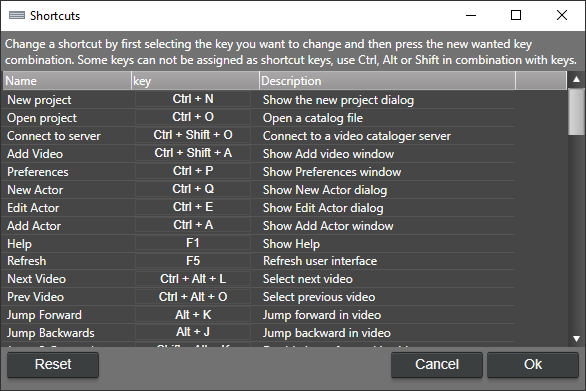
You can change these shortcuts from the shortcut window. Type in the Filter shortcuts box to show only the commands whose name or description contains the text, and check No shortcut only to list the commands that have no keyboard shortcut yet. You can assign shortcuts to commands that have no default key, such as Add To Playlist (adds the selected videos to the current playlist), Reset Search (clears every search filter, the same as Reset in the search window) and Set Rating 1--5. You can also assign shortcuts to your custom actions.