Bottom Window Area
The Bottom Window Area initially contains the Video Player window and the Companion Images window. These can be floated or relocated as preferred, and other windows, such as the Actors window, can work well here.
Video player
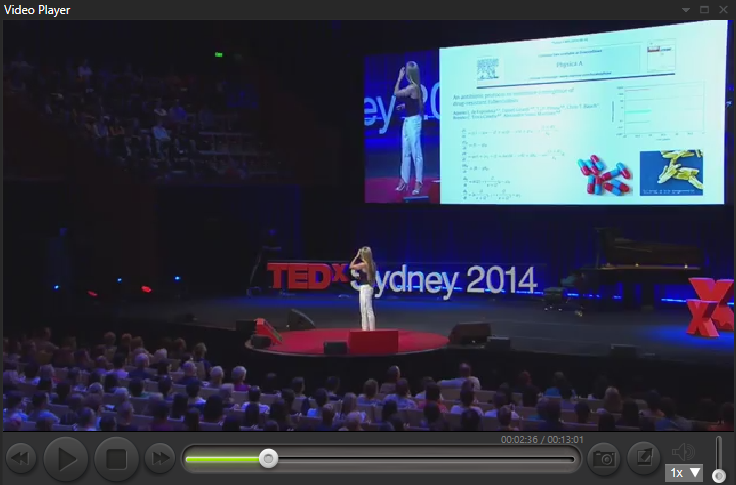
In the Video Player, you play videos from the start-time of a scene. It incorporates the camera button to capture thumbnails for the timeline view. You can still easily use your favorite player (once it has been identified in Preferences or by a custom action) alongside Fast Video Cataloger. You may enlarge the player by grabbing and dragging the gray border outwards, upwards, or both or clicking the Maximize button. Clicking and holding the scrub bar button will display the time value in the video.
When you click the camera button, a new thumbnail is added to the Video Scenes window at the appropriate time. Right-clicking the camera button will allow you to save a jpeg screenshot to a chosen folder location.
Companion Images
The Companion Images window shows all the images, including the cover images, associated with the current video as a slideshow.
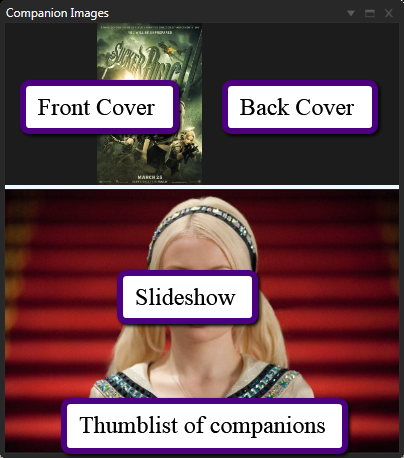
The companion image window has two parts, the upper part contains cover images, and the lower part shows a slideshow of all companion images. You can adjust how much of the Window is used for covers and slideshow by dragging the window's border.
You will get a list of all companion images when you hover the mouse over the bottom part of the Window,
Companion images can be added when a video is added to the video catalog, depending on your settings in Preferences. You can also drag files to the Window and add them directly. When you add actors with companion images to a video's Cast, these companion images are also added.
You can also drag a zip archive onto the window. All images inside the zip are added as companion images for the video. Supported image formats inside zip files are JPEG, PNG, and GIF. Images from zip archives are extracted on the fly and do not need to be unpacked to disk.
The companion image window is a compact window to view companion images. You can also use the Companion Image Browser which is more suitable for managing your companion images.
Companion Image Browser
This window presents all companion images in a thumbnail grid. Click on an image to view it in the companion image preview window.
When a video has no companion images, you can quickly scan the video folder for companion images given the current preferences settings. The scan also picks up zip archives in the video folder and adds any images they contain.
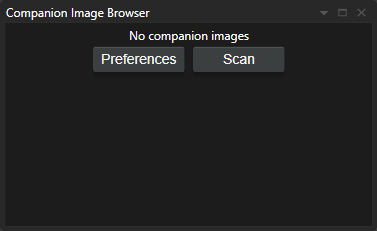
When a video has companion images, they are shown as thumbnails and you can manage them through the right-click menu. For images from a zip archive, the Remove option is replaced by Remove Zip Archive which removes all images from that zip at once.
Script Console Window
The script console window allows you to run and develop Fast video cataloger scripts. You write scripts in C# and will need some necessary programming skills to create new and advanced scripts. However, writing a short and straightforward script or changing the samples we have provided is not hard. Scripting can take your productivity to the next level and save time.
The top area of the scripting window shows the currently loaded script.
The bottom area of the Window shows the output from the script.
Between the script and output areas you find the console controls:
- Load loads a script from a file into the script window.
- Help opens the script API documentation.
- Argument text box — text entered here is passed to the script as its
argumentsparameter when you click Run. Leave it empty for scripts that do not take an argument. - Run compiles and executes the currently loaded script with the argument from the text box. Output from the script is written to the output area.
- Stop is shown while a script is running and requests that the running script is cancelled. You can also hold Shift and click Run to request a cancel.
The Fast video cataloger script API is documented in the API Reference section, which is also what the Help button opens, and includes links to samples to get you started. We also have a Microsoft Visual Studio solution if you are using visual studio as a text editor. Editing your scripts from that solution will allow you to compile the script outside of Fast video cataloger and give you IntelliSense help with the script API.
Tip: Hold Shift when clicking Load to reload the last loaded file into the script window. This is useful when using an external text editor like Visual Studio.