Finding a Video in an Existing Catalog
Finding the videos you are looking for should be easy; it is one of the strong points in Fast Video Cataloger. You get an excellent visual overview in the Video Catalog window by viewing in Icon mode in conjunction with the Video Scenes window. You can visually browse through your video catalog very fast.
You can easily filter your video catalog on keywords, actors, genre, rating, filenames, title, description, file path, or archived media. The video list is sorted by clicking the headings in the Video Catalog window.
Finding specific scenes in one or more videos from your entire video catalog is achieved using the Scene search tab in the Search window. Your recent search history is available as quick links to speed up your work.
Fast Video Cataloger has a docking user interface, enabling you to set up custom layouts that work best for you at the moment. You can spread out your interface across multiple computer screens and take advantage of the visual powers in Fast Video Cataloger.
Your Layout is automatically loaded when the program starts and automatically saved when you exit. You can also save a favorite layout from being restored at any time. We have created a default layout for you that is always available only one click away.
Top menus
At the top of the program windows, there is a menu.
File takes you to the file page where you can open and create catalogs as well as access other tools that works on the entire catalog.
Start shows icons where you would start with a new catalog i.e. add videos from a folder or one by one. Start also has buttons to set the main modes of the software. How should the video catalog window display videos and how should the video scenes window display thumbnails.
Layout let you switch between different layouts in the software and save edited layouts.
View let you toggle all the windows in the software. Functionality in Fast video cataloger is organized into different windows.
Help contains links to help and support.
The default layout
In Fast Video Cataloger's default layout, the work area is split into four main Window Areas, as shown below. The default layout is first loaded when you set up a new catalog. You can restore to this Layout via Layout and the Reset button.
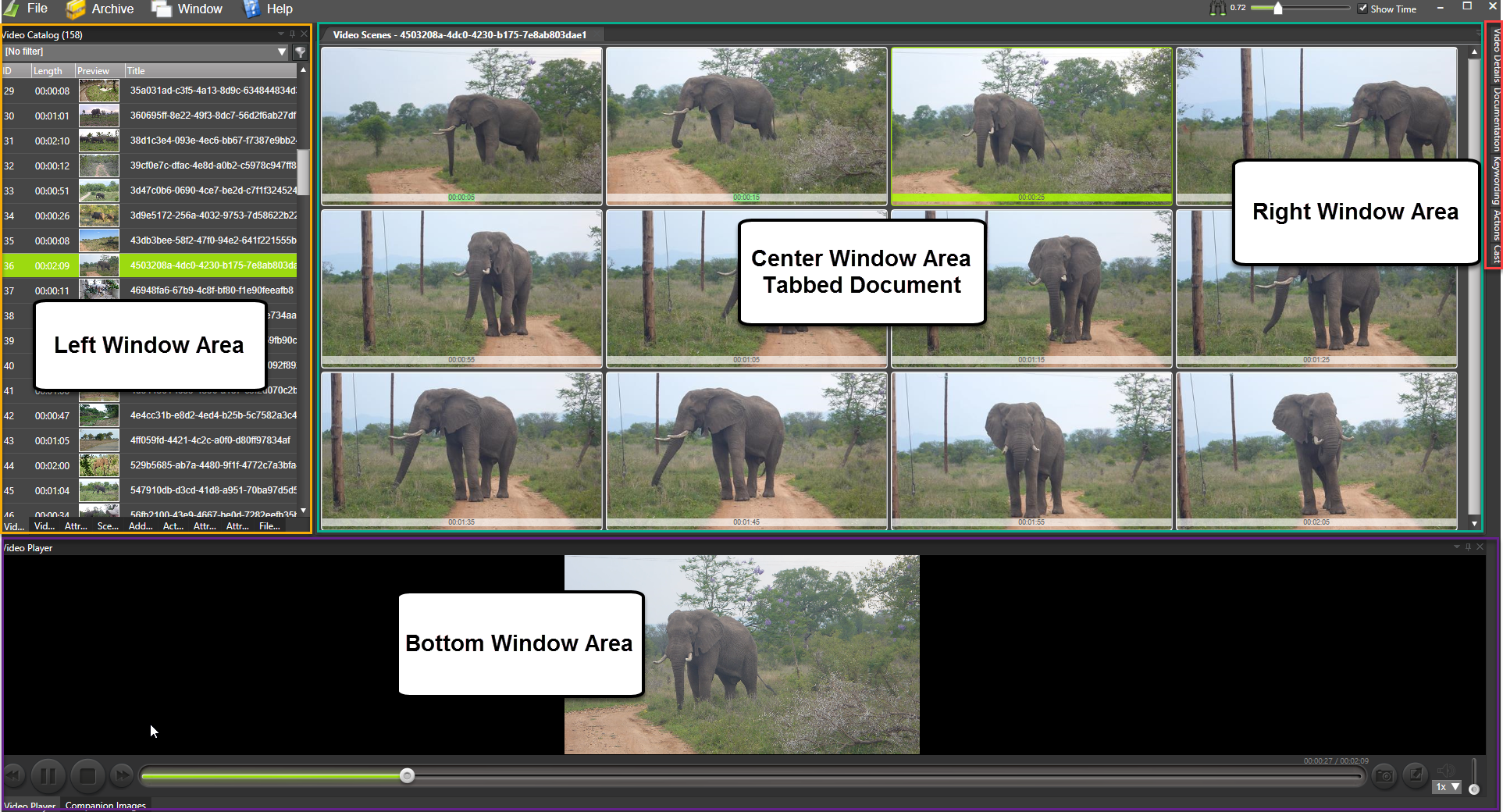
Window Areas
- Left Window Area - Search, Add Videos, Video Catalog, Video Wall, Bins, Actors, File Organizer, Preview, Playlist
- Attract Windows - Attract Covers, Attract Actors, Attract Video Wall
- Center Window Area - Video Scenes, Scene Search Results, Web Browser, Transcription
- Right Window Area - Video Details, Actions, Keywording, Cast
- Bottom Window Area - Video Player, Companion Images, Script Console
- Help Window - News, Help, Getting started, Support, Order, Activate, Update, About
Layout Management
- Window Layouts - Arranging, showing/hiding windows, docking, saving layouts