How to Play and Edit Your Videos
The integrated player makes playing instantaneous and will not focus away from your work by switching to another program. You can play either from the start of a video by double-clicking on it in the Video Catalog window or from a video position by clicking on a scene in the Video Scenes window.
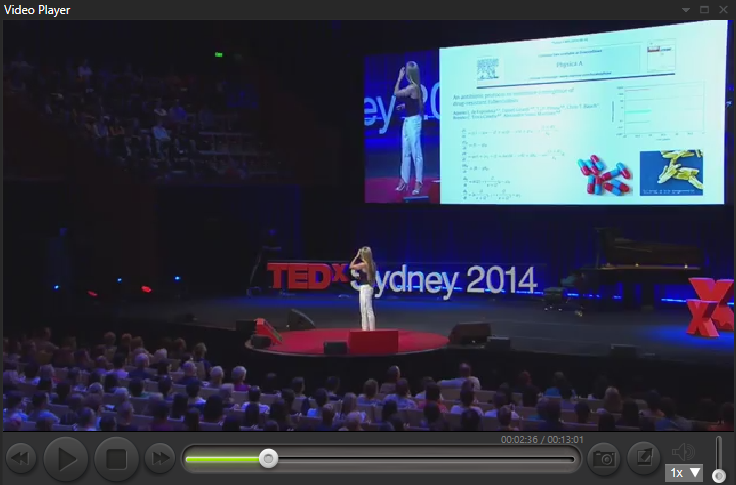
You can change the player screen size by grabbing and dragging the outer gray border or clicking the full-screen button. Clicking and holding on the scrub bar button will display how far into the video playback has reached and allow you to scrub backward and forwards through the length of the video.
Use the forward and rewind buttons to seek. If you hold shift before clicking forward/rewind, you will seek faster. If you hold the ctrl button before clicking forward/rewind, you will seek slower.
The camera button will add the current video frame as a scene thumbnail to your video catalog.
If you right-click the camera button, you can select to save a captured frame as a .jpeg image file or as the image that represents the video.
You can also add or adjust clips in the current playlist from the right-click menu.
Tip: Pause the video and then use slow play - CTRL + Press forward/rewind - to seek where you want to add a scene thumbnail to represent that part of the video clip best.
The sound icon slider allows you to change the playback volume for the video.
The integrated video player supports auto scene select by default. The auto scene select function automatically selects scenes in the Video Scenes window as the video is playing. This is useful for setting scene keywords while playing a video. Auto scene select is disabled if you right-click a scene thumbnail or manually select a scene thumbnail.
Suppose you wish to use your favorite player or edit the video. In that case, you can quickly open your external player/editor by right-clicking on the video in the Video Catalog window and selecting the File pop-out menu, which contains the Play and Edit options.
You can also reach your external player/editor via the Actions window (all actions are on the currently selected video in the Video Catalog window).
If you hold down the ALT key when clicking a thumbnail, the video will be played in the external mpv video player. For more info see the video player preferences.