Video Player Tab
The Video Player tab controls the integrated video player, which plays a video when you double-click it in the Video Catalog window or play from a thumbnail in the Video Scenes window. See also Play and Edit Videos.
NOTE: If you can't find the player, make sure the Video Player window is open in the View menu.
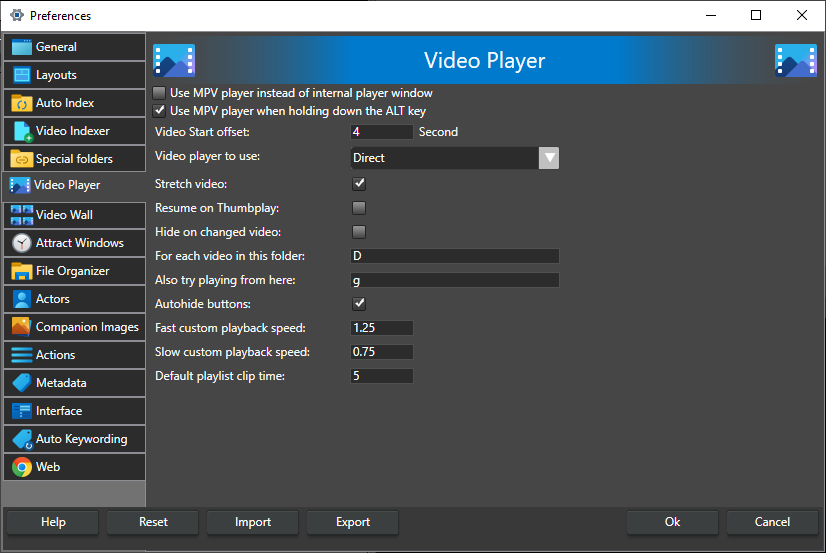
Use MPV player instead of internal player window -- Play videos in the MPV player, in its own window, instead of the internal player. You can still start and seek in the video from the thumbnails, but some features are not available, such as playing masked videos. MPV runs as a separate program and is not part of the layout, so its window position is not saved; it often works best full screen on a screen of its own. MPV has many features and can be customized extensively. Off by default. While this is checked, the internal player settings below are hidden.
Use MPV player when holding down the ALT key -- Hold down ALT while you click or double-click a video or thumbnail to play it in MPV instead of the internal player. Keyboard shortcuts that use ALT are not affected. On by default.
New MPV player for each video -- Start a new MPV window when you play a different video, instead of loading it into the MPV window that is already open. Off by default.
Internal player settings
These settings are shown only when Use MPV player instead of internal player window is unchecked.
Video Start offset -- How many seconds into the video playback starts, from 0 to 255. Some videos have bad first frames and stall when played from the very start. The default is 4 seconds.
Video player to use -- An advanced setting you should only need to change if a video does not play. It chooses how the internal player decodes and shows the video:
- Best (Direct,vmr9,vmr7,evr,asf) -- Tries the built-in codecs first, then the codecs installed in Windows with different video renderers. This plays the most formats, but badly configured codecs on the computer can make the program crash.
- SmartConnect VMR7 -- Uses the DirectShow codecs installed on your computer, in their merit order, and shows the video with the Video Mixing Renderer 7.
- SmartConnect VMR9 -- Uses the installed DirectShow codecs and shows the video with the Video Mixing Renderer 9.
- SmartConnect EVR -- Uses the installed DirectShow codecs and shows the video with the Enhanced Video Renderer.
- Direct -- Uses only the built-in codecs. This is the default and a stable choice, but a video that needs an unusual codec may not play.
- Direct + madvr -- Uses only the built-in codecs and shows the video with the madVR renderer. madVR must be installed.
- Direct, No Sound -- Uses only the built-in codecs and does not play the sound. This is the most stable and usually the fastest option.
Stretch video -- Scale the video to fill the player window, keeping its aspect ratio. When unchecked, the video is shown at its actual size. On by default.
Resume on Thumbplay -- When the video is paused and you click a thumbnail, resume playing from that thumbnail. When unchecked, the video jumps to the thumbnail and stays paused. Off by default.
Hide on changed video -- Hide the video player window when you select a different video, to give more room to other windows. Off by default.
For each video in this folder and Also try playing from here -- A path remapping for videos that are not found where the catalog says they are. When a video below the first folder cannot be found, the player tries the same path below the second folder instead. This is not used for videos played from a catalog server or a web server. If a video cannot be found at all, the player asks you where it is, and fills in these two fields from the location you give.
Autohide buttons -- Hide the player's control buttons until you move the mouse over the player window. On by default.
Fast custom playback speed -- A custom fast speed, offered in the player's speed list. 1 is normal speed and 2 double speed; the value must be between 1.0 and 3.0. Use a period (.) as the decimal separator. The default is 1.25.
Slow custom playback speed -- A custom slow speed, offered in the player's speed list. 1 is normal speed and 0.5 half speed; the value must be between 0.25 and 1.0. Use a period (.) as the decimal separator. The default is 0.75.
Default playlist clip time -- The length in seconds, from 0 to 60, of a playlist clip that is added from a single point in a video: with the camera button in the player, with Add ... seconds from here to playlist when you right-click a thumbnail, when you add a scene or a transcript line to a playlist, or when you set a clip start or end and no clip from that video is selected in the playlist. The default is 5 seconds.
When Use MPV player instead of internal player window is checked, a note in place of these settings says that MPV runs in a separate process and is not part of the layout.