How to Manage Keywords
You can view how your keywords are used and update them from the keyword manager window. Open the keyword manager from the button on the Keywording dialog or the Info screen.
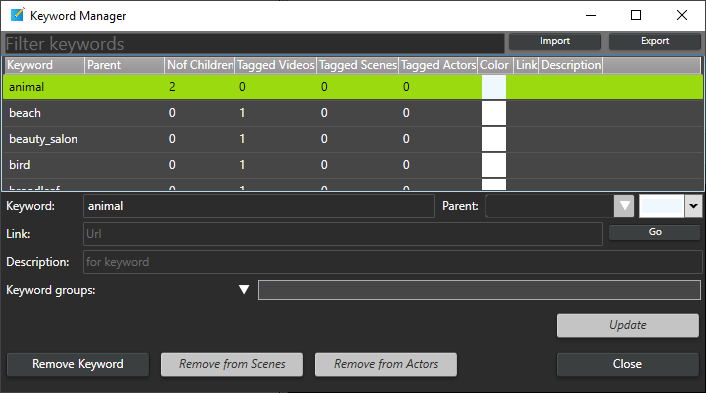
The keyword manager lists all keywords in the catalog.
Click the Import and Export buttons to import or export all keywords as a file. See Import and export keywords below.
In the filter field, you can enter any text to match keywords to narrow down the list. The filter matches anywhere in the keyword, so zz also finds Buzz. The Clear button empties it.
Below the filter text, you have checkboxes to filter by types of keywords. For example, you can filter to show only keywords used on actors. Uncheck Show unused to hide the keywords that are not set on any video, scene or actor; a keyword with child keywords is always shown. The Group dropdown at the right end of that row restricts the list to the video keywords in one group, the same way the Keywording and Search windows do; Group: (all) shows everything again.
The order and width of the columns are remembered between sessions, so you can arrange the grid the way you work and it stays that way.
Keywords are listed with their Parent keywords, the number of child keywords, and the frequency with which the keyword has been used in videos, scenes, and actors.
The window opens with nothing selected, ready to create a new keyword: type the name in the Keyword field and click Create. Select a keyword in the list and the same field becomes its name for renaming; the selected keyword is also shown in the window's title bar. A plain click on the selected keyword deselects it and takes you back to creating.
You can edit the keyword name, link, description, parent, and color if you select a keyword. To change the keyword, click the update button. Choose (none) in the Parent dropdown to clear a parent.
Renaming a keyword to a name that already exists merges the two: after a prompt telling you how many videos and scenes will move, everything tagged with the keyword you are renaming is tagged with the existing one instead, its child keywords move under the existing one, and the renamed keyword is deleted. This is how you consolidate duplicates such as interview and Interview. Actor keywords merge the same way.
Removing a keyword asks for confirmation first. A keyword that has child keywords cannot be removed until the children have been given another parent; the message names them.
You can add a video keyword to a group by entering a group name in the keyword group field and pressing Enter. Actor keywords cannot currently be in groups. A keyword can be in more than one group. When you have keywords in groups, you can filter the keyword lists in the keywording and search windows.
Any changes to a keyword must be confirmed by clicking 'Update'. If you change the keyword selection without clicking 'Update', the keyword will remain unchanged.
You can also remove keywords with the "Remove from videos", "Remove from scenes", and "Remove from Actors" buttons.
A keyword is normally deleted when it is removed from its last video or scene. Check Keep unused keywords to keep it instead, with its colour, parent and groups. This suits keywords used as flags in a workflow, which are empty most of the time. Unused keywords are then deleted only when you select them here and click Remove Keyword. The setting is stored in the catalog, so it applies to everyone using it. The same option is in Preferences on the GUI tab.
Import and export keywords
Editing keywords one at a time in the keyword manager is slow when you have a lot of them. Exporting the list, editing it in a spreadsheet and importing it back is a much faster way to build or rearrange a large keyword hierarchy.
The Export button writes either of two formats, depending on the file extension you choose:
- .txt — one keyword name per line. Use this for a plain list of keyword names, without hierarchy or any other settings.
- .csv — the full list with parent, color, link and description. Use this if you want to keep or change the hierarchy.
The Import button reads both formats back. You can also drag a .txt or .csv file onto the keyword manager window to import it.
Rearranging the hierarchy in a spreadsheet
- Click Export and save the list as a .csv file.
- Open the file in Excel, LibreOffice or any other spreadsheet.
- Fill in the Parent column to say which keyword each keyword belongs under. Add rows for any new keywords you want. Leave Parent empty for a top level keyword.
- Save the file, keeping the CSV format.
- Back in the keyword manager, click Import and select the file.
The columns are:
| Column | Meaning |
|---|---|
| Keyword | The keyword name. This is what keywords are matched by, so do not change it unless you mean to create a new keyword. |
| Parent | The name of the keyword this one sits under. Empty means it is a top level keyword. |
| Color | The keyword color as #AARRGGBB, for example #FFFF0000 for red. Leave empty for the default. |
| Link | An optional web link for the keyword. |
| Description | An optional description of the keyword. |
Points worth knowing when importing:
- Keywords are matched by name, ignoring upper and lower case. A keyword that is already in the catalog is moved to the parent given in the file, not added a second time, so you can import an edited export as many times as you like.
- If you name a parent that is not itself listed in the file, it is created for you. This lets you add a hierarchy by only filling in the Parent column.
- The rows can be in any order. A parent may appear after the keywords that use it.
- Color, link and description are applied to keywords the import creates. For keywords that already exist, only the parent is changed; edit their color, link and description in the keyword manager.
- A keyword cannot be its own parent, and parent chains that would form a loop are ignored rather than imported.
If your spreadsheet asks which format to save as, any of the CSV variants will do. Files that use a semicolon as the separator, as spreadsheets do on many European language settings, are read correctly too.