Actors Tab
All actors in your catalog are listed in the Actors window and can be associated with videos by drag-'n'-drop to the Cast window. See How to Create Actors.
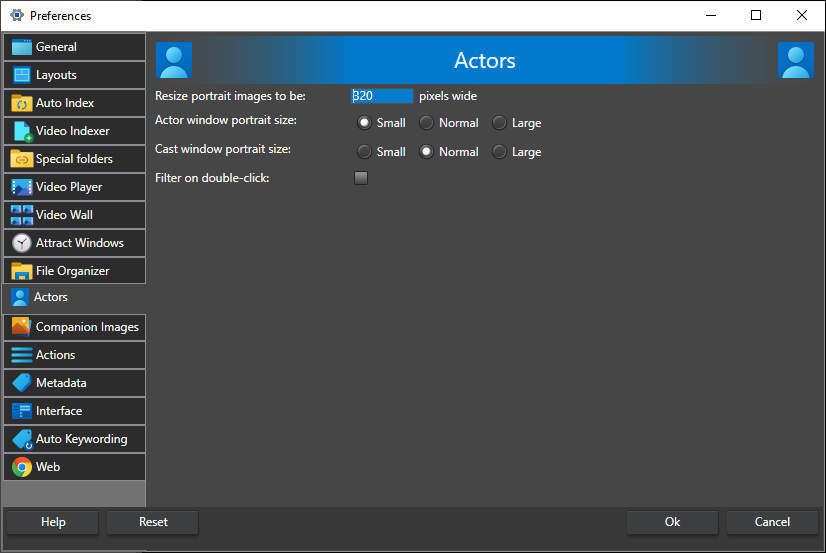
Resize portrait images to be -- The width, in pixels, that actor portrait images are resized to when they are saved in the catalog. The aspect ratio is kept. Default 320, range 8-4096. The portrait image is the only actor image that is saved in the catalog. We recommend setting this option when you start creating your catalog and not changing it after you have started to add actors.
NOTE: The size of the actor portrait can significantly impact your catalog's file size if you have many actors.
Actor window portrait size -- How large the portraits are drawn in the Actors window, relative to the stored portrait: Small (half size), Normal (stored size) or Large (double size). Default Small.
Cast window portrait size -- How large the portraits are drawn in the Cast window, relative to the stored portrait: Small (half size), Normal (stored size) or Large (double size). Default Normal.
Filter on double-click -- When checked, double-clicking an actor in the Actors window filters the search on that actor in the Search window. When unchecked, double-clicking an actor opens the actor dialog. Off by default.