Center Window Area
The central window area is where you see the Video Scenes window displaying scenes represented as screenshots from the currently selected video. The windows displayed in the Center Window Area depend by default on your selections within the Left Window Area.
Video Scenes window
The Video Scenes window shows scene thumbnails (also known as screenshots) from the video you have selected in the Video Catalog window.
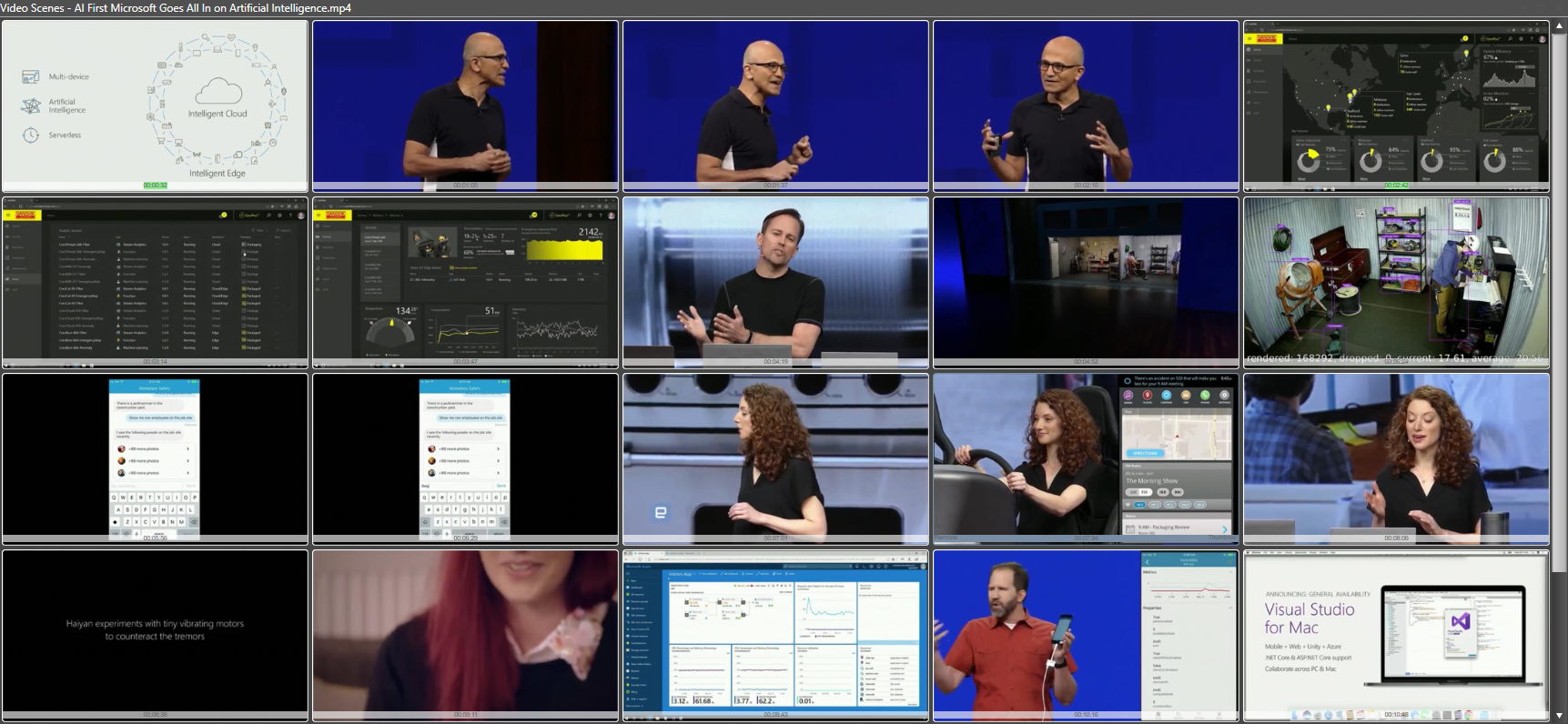
Left Click on a scene thumbnail to play the video from that time.
When you hover the mouse over a scene thumbnail, buttons appear on the thumbnail. The remove button deletes that scene thumbnail from the video. Hold Shift and click the remove button to also delete all thumbnails to the nearest end of the strip: Shift+click on a thumbnail in the first half removes it together with all earlier thumbnails, and Shift+click in the second half removes it together with all later thumbnails. This is a quick way to trim away unwanted intro or ending frames.
Right Click on a scene thumbnail to bring up a context menu with the following menu items:
-
Use selected as video thumbnail -- Click to let this image represent the whole video in the Video Catalog window.
-
Keywording -- Click to show the Window to edit keyword tags for this specific scene.
-
Use selected for new Actor portrait -- Bring up the Add Actor dialog with this scene thumbnail as the actor portrait.
-
Remove frame(s) -- Remove this scene from the list.
-
Play from selected -- Play the video from this scene forward.
-
Copy -- Copy this scene thumbnail to the clipboard so you can paste it into other programs.
-
Save As -- Save this scene thumbnail as a file.
-
Burst Capture -- Burst capture starts at this scene using the burst capture index settings from Preferences.
-
Add to playlist -- Add a clip from here to the currently selected playlist.
-
Add to bin -- Add a clip from here to the currently selected bin.
Scene Search Results
This Window is very similar to the Video Scenes window, except that it shows the scenes that match the active search in the Scene keyword search inside the Search window. This Window can contain video scenes from different videos, and you can still play each of them from the time of that scene.
Right Click on a scene thumbnail to bring up a context menu with the following menu items:
-
Go to video -- Invokes the Video Scenes window (alongside the Scene Search Results window) for the whole video as it exists in the video catalog and its context menu options.
-
Add to playlist -- Add the scene to the currently selected playlist.
-
Use image for new Actor portrait -- Bring up the Add Actor dialog with thumbnail as the actor portrait.
-
Play from here -- Play the video from this scene forward.
-
Copy -- Copy this scene thumbnail to the clipboard so you can paste it into other programs.
-
Clear Keywords -- This option will clear all keywords from this scene.
Web
The Web window is an integrated Chromium web browser. You can use it as a normal web browser with some features that makes it extra convenient when you are working with your video catalog. You can also access it from the C# scripting API.
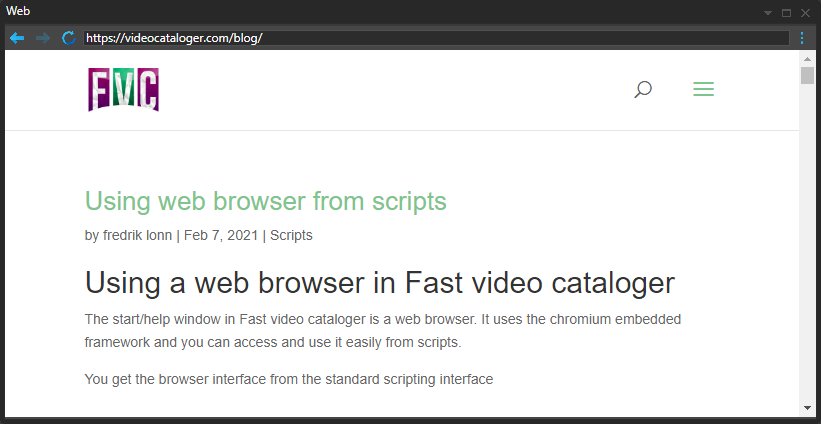
Enter a URL in the address field to open the web page.
In the upper corner, you find a context menu that provides you with options to:
-
Open a new browser tab.
-
Open the current page in your system web browser.
-
Set the current page as the start page inside of Fast Video Cataloger.
-
Adjust the Zoom of the page.
-
Open the web page in full-screen mode (Exit with F11).
If you right-click a video URL, you can download the video file, index it, and add it to the catalog.
If you right-click an image URL, you can download the image and use it as an actor portrait or as the image for a video.
When you have the actor dialog, you can right-click to copy-paste text straight into the actor's name or bio.
NOTE: We are using the Chromium embedded browser, i.e. the same browser engine used in Edge and Chrome. However, Google restricts all embedded browsers from logging into a Google account.
Transcription
The transcript window displays a video's transcript if it is in the catalog. You can add transcripts as .srt files from the transcript window or as part of the video indexing process.
If a video has no transcript imported, the transcript window will show an Add button where you can browse to an SRT file to add for the video.
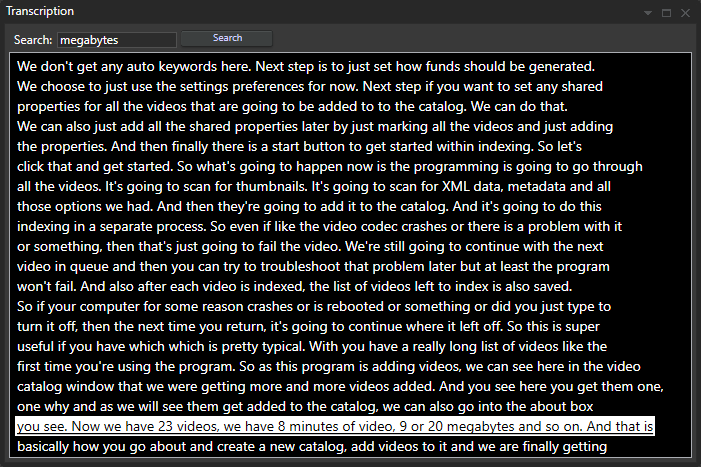
A tooltip shows the thumbnail closest to the time of the text line.
When a video is playing and the transcript window is visible, it will highlight the word closest to the current time in the video as it plays.
The video player will jump to that time when you click on a word in the transcript window.
At the top of the transcript window is a search field where you can search this specific text.
If you right-click on a subtitle in the transcript, you can add a frame capture at the time of that word.
You can also add the time of the specific subtitle to a playlist.
To correct a line, right-click it and choose Edit text, or Delete line to take it out. Replace... at the top of the window replaces a word in this transcript or in every transcript in the catalog. See Correct a Transcript.
To remove a transcript from a video, right-click in the window but not on any word and select "Remove transcript.".