Metadata Tab
In the Metadata tab you set the keywords for the keyword shortcuts, and choose whether metadata is written outside the catalog so that other programs can read it.
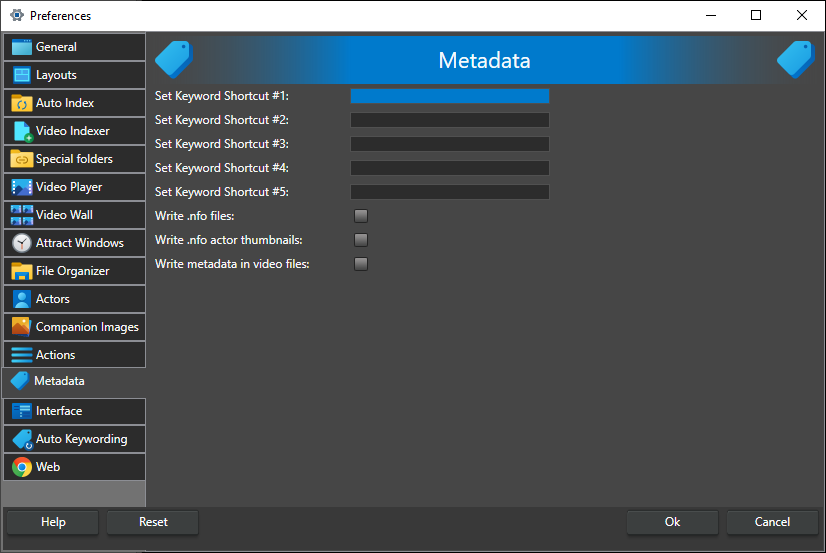
Set Keyword Shortcut #1 to #5 -- The keywords that each of the five keyword shortcuts assigns. Enter a comma-separated list of keywords; when you press the shortcut, those keywords are assigned to the selected videos. The keys for the shortcuts are set in the shortcuts dialog, see Keyboard Shortcuts.
Write .nfo files -- When checked, Fast Video Cataloger writes an XML file with the .nfo extension next to the video file, with the same name as the video. The file uses the Kodi .nfo format and holds the title, description (plot), link, rating, keywords (as tags) and the cast. It is updated whenever the video's metadata changes in the program. If the video already has an .nfo file that Fast Video Cataloger did not create, only its title, plot, link, rating and tags are updated and the rest of the file is left as it is. Off by default.
Changes made to an .nfo file outside the program are read back when you right-click the video and choose Index > Re-read metadata, or when the video is indexed again, if .nfo files is checked under Extract metadata from on the Video Indexer tab.
Write .nfo actor thumbnails -- When checked, the portrait of each actor in the cast is saved in a folder named .actors next to the video, and the .nfo file links to it. This applies when Fast Video Cataloger creates or rewrites the .nfo file. Off by default.
Write metadata in video files -- When checked, Fast Video Cataloger writes the title, keywords, rating and description into the video file itself, using the Windows property system. You can see these on the Details tab of the file's Properties in Windows Explorer, and Windows search can find them. It works only for file formats where Windows can write these properties, such as MP4 and WMV; for other formats nothing is written. Off by default.
Notes: When these options are checked, the files are updated every time the video's metadata changes, which can have some performance impact.
Writing metadata into a video file changes the file, so its checksum changes, and the video file must be accessible and writable. If the file is in use, for example by the video player, the program waits until it can write.
When the description is written as the Windows comment, Windows may only keep the first part of a long description.