
Video metadata is the information about a video file: its title, description, tags, rating, and technical details like resolution and codec. On Windows, you can add basic metadata to MP4 and WMV files without extra software. Right-click the file in File Explorer, choose Properties, open the Details tab, and click a value such as Title, Tags or Comments to edit it. Explorer cannot edit MKV or AVI files, and it works on one file at a time. To add, read and search metadata for a whole video library in any format, use a video catalog. The rest of this post shows how in Fast Video Cataloger.
What is video metadata?
There are two kinds. Technical metadata comes from the camera or the encoder: duration, resolution, frame rate, codec, audio channels, and sometimes the date and the camera model. Descriptive metadata is what people add: a title, a description, keywords, a rating, who is in the video.
Metadata can live in three places. It can be inside the video file, as Windows properties or as XMP. It can be in a sidecar file next to the video, like an .nfo or .xmp file. Or it can be in a database, like the media pool in your editor or a video catalog. Where you keep it decides which programs can read it.
A video database
Fast Video Cataloger lets you build a quick and searchable database out of video metadata. The video database gives you a quick overview of lots of videos without the need to have the actual large video files available. It also lets you quickly search and browse for videos in your database.
Adding video and extracting metadata
When you add a list of videos to Fast Video Cataloger, it gets metadata for the videos in a number of ways.
First, you have the option to add your own metadata. Enter keywords, a genre, a rating, a link and the cast in the Add Videos window. Entering it here allows you to easily set shared metadata for a number of files. You can add more metadata later, but this is a quick way to add the info you already know about a batch of videos.
When you start adding the videos, Fast Video Cataloger scans through each video, extracts thumbnails and stores them in your video catalog.
It then reads metadata from the sources ticked under Extract metadata from on the Video Indexer tab in Preferences (Ctrl+P):
- .nfo files: an .nfo file next to the video, with the same name as the video file. On by default.
- Video files (MediaInfo): technical metadata from inside the file, such as codec, resolution, frame rate and audio language. On by default.
- Video files (ShellInfo): the metadata Windows shows on the file’s Details tab in File Explorer. On by default.
- Video files (XMP): XMP metadata from inside the file, for example from Adobe Bridge or a stock footage agency. Off by default.
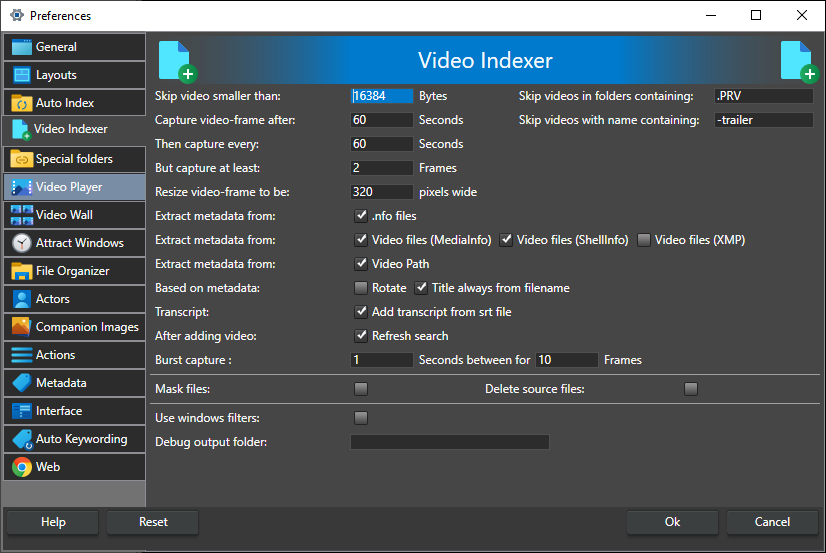
The technical values are stored as extended properties of the video. Keywords found in an .nfo file or in XMP data are added as keywords. With Title always from filename unchecked, a title found in the metadata is used as the video’s title.
Fast Video Cataloger also scans the video folder for cover art and companion images, based on the settings in Preferences.
XMP metadata
XMP is the metadata standard Adobe created. Premiere Pro, Adobe Bridge and ExifTool write it. Tick Video files (XMP) before you add the videos. The title and description are set directly from the XMP data. The rest is listed under Extended Properties in the Video Details window, grouped by XMP namespace. The XMP video metadata page shows each step.

When a file’s metadata changes
Did you edit the metadata in another program after you added the video? Right-click the video and choose Index > Re-read metadata. It reads the metadata again without capturing new thumbnails. It only adds and updates. A value that is missing in the file leaves the catalog’s value as it is, and a keyword you removed from the file stays on the video in the catalog.
What is an nfo file?
An nfo file is a plain text file. The metadata in the nfo file is stored as XML data. You can view the content in any plain text editor, like Notepad. In Windows, nfo files are normally associated with System Information. If you double-click an nfo file, the wrong program opens. Right-click it, select Open with, and choose Notepad.
What video metadata is read from an nfo file?
nfo files can contain a lot of different metadata. Fast Video Cataloger reads the description of the video, the keywords used to tag the video, and links to store as the video link.
How to get nfo files?
Nfo files can be generated by a number of programs, like Kodi and Plex Media Server. If you are moving from one of these programs, or use them together with Fast Video Cataloger, export nfo files and your video metadata comes with them into your catalog.
Adding metadata after the videos are in the catalog
Select a video in the Video Catalog window and open the Video Details window from the View menu.
- Click the Title, Description, Genre or Rating field and type. There is no save button: changes are saved automatically. You can drop a .txt file on the Description field to use its text.
- Open Extended Properties and click Edit to add your own searchable fields, for example Client, Location or Licence.
- Use the Keywording window to add keywords. Keywords apply to all selected videos, so select a batch first. Check Tag scenes in the video to tag a single scene instead of the whole video.
- Drag actors from the Actors window to the Cast area to record who is in the video.
Keywords are usually more useful than the genre field, because a video can have as many as you need. The Video Details how-to lists every field.
Where does Fast Video Cataloger store video metadata?
By default, Fast Video Cataloger stores its metadata in the catalog database file, not in the video file. The reasons are speed, and that there is no standard for how to store metadata in video files. Some file formats do not allow it, some do, and it all depends on the video file container. Another good reason to not store metadata in the video file is that it might already contain metadata you do not want to overwrite.
When other programs need to read your metadata, turn on writing in Preferences, on the Metadata tab. Both options are off by default.
- Write metadata in video files writes the title, keywords, rating and description into the video file through the Windows property system. You then see them on the Details tab in File Explorer, and Windows search finds them. It only works for formats where Windows can write these properties, such as MP4 and WMV.
- Write .nfo files writes a Kodi-format .nfo file next to each video, with the title, description, link, rating, keywords and the cast. If the video already has an .nfo file from another program, only its title, description, link, rating and keywords are updated.
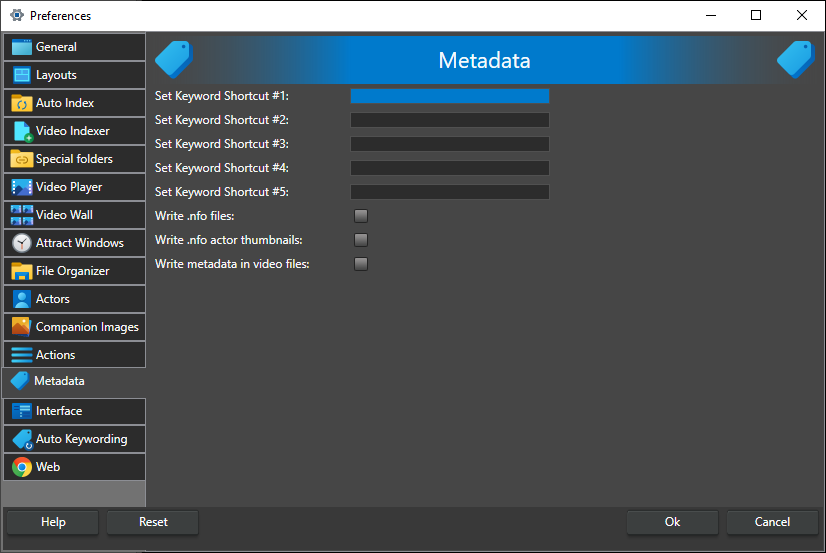
Writing into a video file changes the file, so its checksum changes. The file must be writable and not in use. Fast Video Cataloger reads XMP but does not write it back. Editing XMP values in the catalog changes the catalog only, so you can always reimport the original data.
How to search metadata
Metadata is included in your search. Press Ctrl+I to open the quick search and type a word. It searches keywords, descriptions, titles, file names and extended properties, including XMP data. Each new word narrows the list.
For more control, open the Search window. Extended properties are at the bottom of the list. Pick a property and select a value from the dropdown, which lists every value used in the catalog. Tick the checkbox next to it to search between two values. You can combine this with keyword, rating and text searches. For the whole workflow, from folders to search, see how to organize video files.
Try it on your own videos
Fast Video Cataloger runs on Windows 10 and 11 and works with the files where they are. Download the free 30-day trial, add a folder of videos, and search the metadata it reads from them.