
To search video files by what is said in them, each video needs a transcript. File Explorer cannot do this. A search like kind:video plus a word only matches file names. Premiere Pro and DaVinci Resolve Studio can transcribe and search clips, but only the clips in the project you have open. Online transcription services work on one uploaded file at a time. To search all the videos on your drives at once, you need a program that transcribes each video, keeps the transcripts in a catalog and searches them all. This guide shows how to do that on Windows with Fast Video Cataloger. The speech-to-text runs on your own PC.
Step 1: Turn on speech-to-text
Open Preferences and go to the Video Indexer tab. On the Transcript row, tick Enable speech-to-text transcription.
Every video you add after this is transcribed when it is indexed. The indexing window shows two steps per video: first the audio is extracted, then it is transcribed.

Step 2: Choose the language
Below the checkbox is the Spoken language list. Fast Video Cataloger comes with an English-only speech-to-text model. With that model the list is locked to English.
Footage that is not in English
The English-only model is small and fast. Give it a video in another language and it still writes English words. You get no error, just a transcript you cannot search.
For other languages, download the multilingual model:
- Open the File menu, go to Maintenance and choose AI Models.
- Find Speech-to-text Small – all languages and click Download. It is about 490 MB.
- When the download is done, the row says Active. Transcription now uses this model.
The multilingual model knows around a hundred languages and is also better at English. It is slower, so it is not the default. If your transcripts are gibberish, check in AI Models that the multilingual model is the active one.
With the multilingual model you can change the Spoken language list. Auto-detect works out the language of each video. Use it if your videos are in several languages. Auto-detect listens to the start of the video. If a video starts with silence, music or a test tone, it can pick the wrong language and the transcript is nonsense. If all the videos you are adding are in one language, pick that language instead.
Step 3: Transcribe the videos you already have
Step 1 only covers videos you add from now on. For videos already in your catalog, select them, right-click and choose Index > Transcribe Audio. This transcribes them with your current settings and does not capture the thumbnails again. You can select a whole folder and let it run.
You can also bring in transcripts in two other ways:
- Subtitle files. If your videos have
.srtfiles with the same name next to them, tick Add transcript from srt file on the Transcript row in Preferences. They are read in when the videos are indexed. For a single video, click Add in the transcript window and pick an.srtor.subfile. - Audio from a separate recorder. If the camera sound is poor but you have the recording from a lavalier or an external recorder, click Add in the transcript window and pick that audio file. WAV, MP3, FLAC and OGG work. The transcript is stored on the video. The times come from the audio file, so if the recorder started before the camera, the lines are off by that difference.
Step 4: Search the whole catalog
Open the Search window and expand the Transcript section. Type a word. The list shows every video where that word is in the transcript.
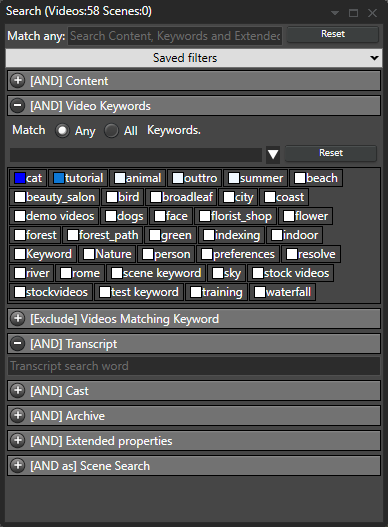
The search matches whole words. budget finds budget but not budgets. Search for the form you expect, or search for both.
You can combine the Transcript section with the rest of the Search window. For example, search for a word only in videos where a certain person is in the Cast, or only in videos with the keyword interview.
Step 5: Jump to where it was said
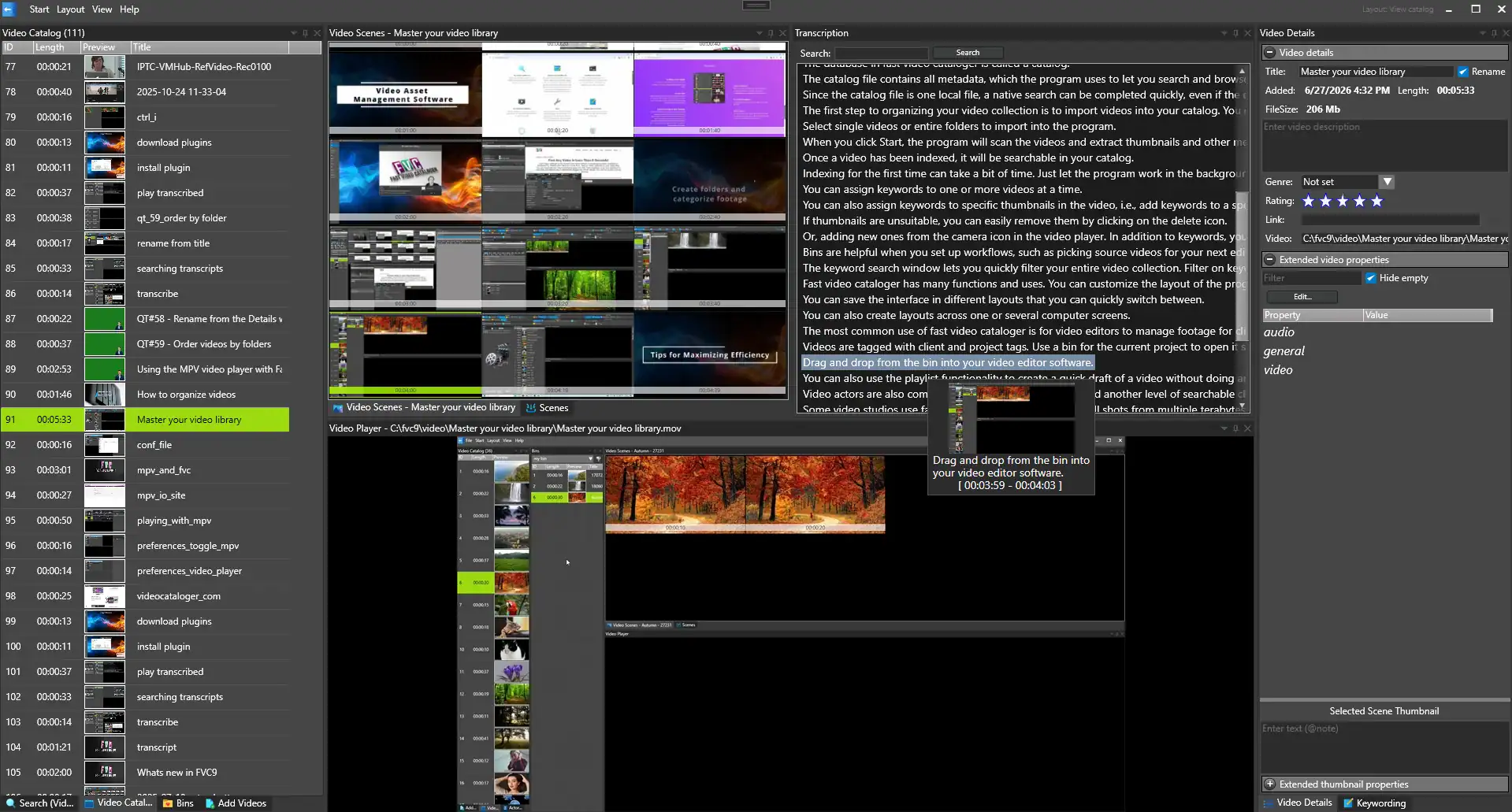
Select a video in the results. The transcript window opens with your search word filled in and the matching lines highlighted. Use < and > to go from one match to the next. The video player follows. You can also click any line to play the video from that point.
More things the transcript window does:
- While the video plays, the current line is selected and kept in view.
- Hover over a line to see a thumbnail from that point, with the text and the time.
- Right-click a line and choose Add to playlist to collect the moments you want, or Add frame to save a thumbnail from that point.
- The search box at the top searches only this one transcript.
How good are the transcripts?
Good enough to search. Clear speech close to the microphone works well. Names, product names and trade jargon are the words it gets wrong most often. If a search for a name finds nothing, try spelling it the way it sounds, or search for another word said at the same time.
Loud music, wind and people talking over each other make the transcript worse. If you have a separate audio recording, transcribe that instead (see step 3).
How fast it is depends on your computer and the model. The English-only model is faster. A big catalog takes a while the first time, but each video is only transcribed once. After that, a search takes a moment.
Search the transcripts from an AI assistant
You can also search your transcripts from an AI assistant such as Claude. Fast Video Cataloger comes with an MCP connector that lets the assistant search your catalog. Ask it for every interview where someone talks about the opening night. It searches the transcripts and answers with the videos and the times.
You do not need to know the exact words. The assistant tries different wordings, can combine the search with the people in the cast, and sums up what it finds. Your video files stay on your PC, but the transcript lines the assistant reads are sent to the assistant. Keep that in mind for confidential footage.
The connector goes through the Fast Video Cataloger server, so you need to start the server and create an API key first. Let an AI assistant search your video library shows what it can do. The MCP server guide has the setup for Claude and other assistants.
Watch it
The tutorial shows how to pick a speech-to-text model, turn transcription on, search transcripts, handle footage that is not in English, and transcribe videos already in the catalog.
Every transcription setting is described in the help: Transcribe Videos. Fast Video Cataloger can also find a shot from a description or find a person. See AI video search. How to search inside video files on Windows compares the different ways to search.
Try it on your own footage
Transcribe a folder of your own interviews and search for something you remember someone saying. Download Fast Video Cataloger and use the free 30-day trial.