
What is new in Fast Video Cataloger 10.4
Fast Video Cataloger 10.4 is now available for download.
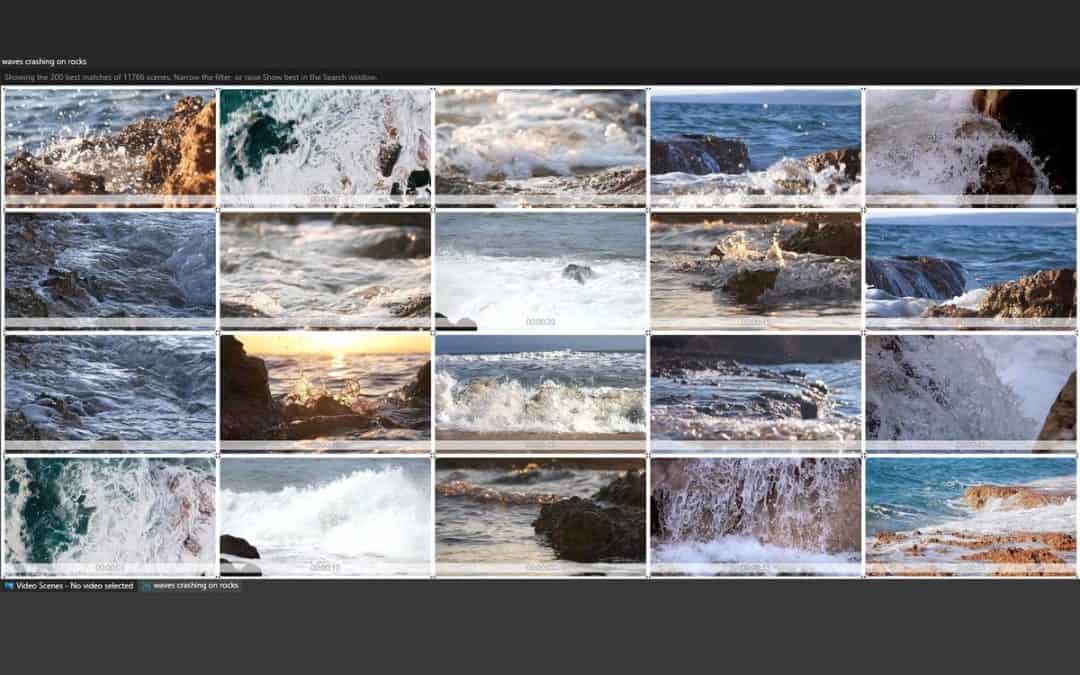
The big new feature in this version is visual search. You can now find scenes by describing them in words, without anyone having tagged them first. Open the Scene section of the Search window, write something like “drone shot over a city at night” or “someone pouring coffee into a cup” in the Describe the scene box, and the scene results list the best matching thumbnails first. The search looks at the pictures themselves, so it finds footage your keywords never mention. All the other filters in the Search window still apply, so you can limit a description to one folder or one keyword.
When you have found one good shot, Find similar scenes in the thumbnail’s right-click menu ranks the whole catalog by how much each scene looks like it, which is a quick way to pull together the rest of a set. By default each video contributes at most three scenes to the results, so one long shot does not fill the list, and you choose how many results to show.
Visual search uses an index that Fast Video Cataloger records while it indexes your videos, and it runs on your own computer like the other AI features. For videos already in your catalog you build the index from AI Scenes with the new Visual search index option, which shows how much of the catalog is covered and can be stopped and resumed. Describing a scene needs the Visual search model from the AI models window. On a shared catalog the search runs on the server, and it is also available to scripts through the REST API and to AI assistants through the MCP connector. The visual search how-to goes through the setup step by step.
Trained Tags can now be taught what they are not. Right-click a wrong trained tag keyword on a thumbnail and choose Not this: the keyword is removed and from then on the tag does not match that frame, or frames that look more like it than like the tag’s own examples. The Trained Tags window also shows which of your examples are helping and which are not, for example an example that is almost a copy of another one, and teaching the same picture twice is caught.
New users now get a Getting Started panel instead of the old tutorial wizard. It opens beside the work area when you create your first catalog, lists the seven steps of the everyday workflow and ticks each one off as you do it, with Show me, Learn more and Watch links for every step. You can bring it back at any time from the Help menu.
There are several smaller additions as well. Index > Re-read metadata reads the metadata in the selected files again without capturing new thumbnails, so XMP and other metadata edited in another program reaches the catalog without a full reindex. You can choose the spoken language for speech-to-text in Preferences, and a video with audio tracks in several languages is transcribed from the track in that language. Bins now have the same Index menu as the Video Catalog window, and Clear Bin asks before it empties a bin.
The release also brings a long list of fixes and improvements across search, keywording, bins, the server and the maintenance tools. The full list of changes is in the version history in the user guide.
Download the latest version from our download page. If you already run Fast Video Cataloger 10, the built-in update check will offer you the new version.