
You have hundreds or thousands of video files. You know the clip you need exists somewhere, but you can’t remember which file it’s in. Scrubbing through videos one at a time isn’t practical when you’re working with a large library.
Here’s how to actually search inside your video files — not just filenames, but the visual content and spoken words within the videos themselves.
The problem with default video search
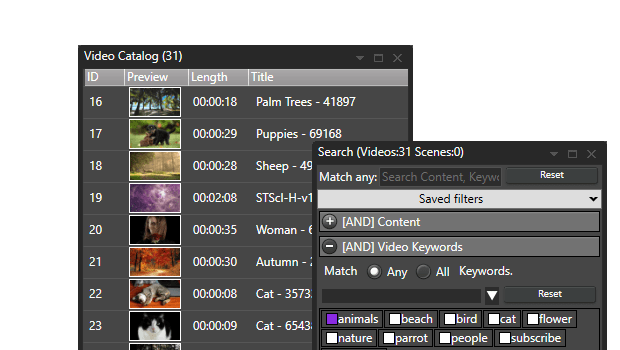
Windows Explorer can search video filenames and some basic metadata (date, size, format). But it can’t look inside the video. If you named a file “IMG_4523.mp4” or “meeting_recording_final_v2.mov”, good luck finding the scene where someone demonstrated the new product feature.
What you actually need is a way to search:
- Visual content — what appears in the video
- Spoken words — what was said in the video
- Tagged scenes — specific moments you’ve marked with keywords
- Metadata — codecs, resolution, duration, custom properties
Method 1: Visual thumbnail search with scene detection
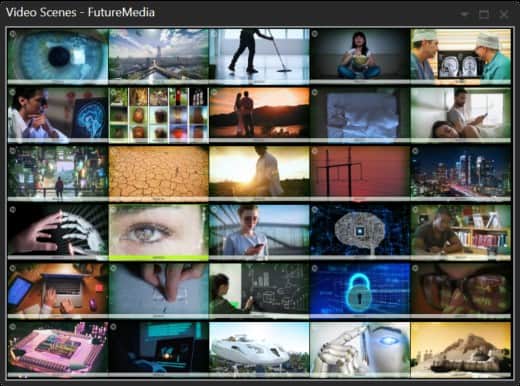
The fastest way to find content inside videos is automatic thumbnail extraction with scene detection. Software like Fast Video Cataloger analyzes each video and creates thumbnails at every scene change. This gives you a visual timeline — a strip of images showing what happens throughout the video.
Instead of scrubbing through a 60-minute video, you scan the thumbnails and spot the scene you need in seconds. Click any thumbnail to jump directly to that moment and play from there.
This works for:
- Finding a specific shot in raw footage
- Locating a scene you remember visually but can’t describe in words
- Browsing through videos you haven’t watched recently
Method 2: Keyword and scene tagging
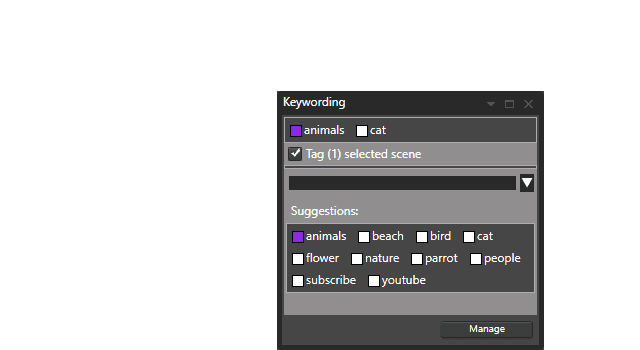
Tag individual scenes within your videos with descriptive keywords. For example, tag a segment as “product demo”, “interview”, or “B-roll cityscape”. Then search for that keyword across your entire video library.
This is more work upfront but pays off when you need to find clips repeatedly. In Fast Video Cataloger, you can tag both entire videos and specific scenes, then search across everything instantly.
Method 3: AI-powered speech-to-text search
If your videos contain speech — interviews, presentations, tutorials, meetings — you can use AI transcription to convert the audio to searchable text. Then search for any word or phrase spoken in any video in your library.
Fast Video Cataloger includes a transcription plugin that uses machine learning to generate searchable transcripts. You can search on anything said in your videos and jump directly to the sentence in the video where it was spoken.
This is especially powerful for:
- Meeting recordings — find when a specific topic was discussed
- Training videos — locate the section explaining a particular concept
- Interviews — find every mention of a keyword across all interviews
Method 4: Metadata and property search
Every video file contains embedded metadata: codec, resolution, framerate, duration, creation date. Fast Video Cataloger extracts this automatically and makes it searchable. You can also add custom metadata fields for your specific needs — project name, client, location, rating.
Search across all these properties, or combine them: find all 4K videos tagged “interview” that mention “quarterly results” in the transcript.
How to set it up
- Download Fast Video Cataloger — free 30-day trial, no email required
- Add your video folders — local drives, external HDDs, USB sticks, or network shares
- Wait for indexing — thumbnails are extracted automatically at scene changes
- Start searching — use the search window to find videos by keywords, metadata, or any combination
- Add the transcription plugin — enable AI speech-to-text for transcript search
Your catalog works even when your video drives are disconnected. Store videos on cheap external drives and keep the searchable catalog on your fast local SSD.
Supported video formats
Fast Video Cataloger supports mp4, avi, mov, wmv, mpeg2, mpeg4, flv, and all other major formats out of the box. Additional formats work through DirectShow codecs — nearly anything that plays in Windows Media Player will work.