
You know the scene exists. Maybe it’s a shot of a product, a specific interview answer, or a moment from a training session. But which video file is it in? And where in that file?
Scrubbing through videos manually is painfully slow. A 10-minute video takes 10 minutes to review. A library of 500 videos? That’s weeks of work. Here’s how to find specific scenes fast.
The manual way (and why it doesn’t scale)
Opening each video file and scrubbing through the timeline works for a handful of files. But once your library grows past a few dozen videos, it’s impractical:
- A 1-hour video at 2x speed still takes 30 minutes to scan
- You can easily miss the scene even while scrubbing
- There’s no way to search across multiple files simultaneously
- Once you find it, there’s no way to bookmark it for next time
Visual thumbnail timelines — scan hours of footage in seconds
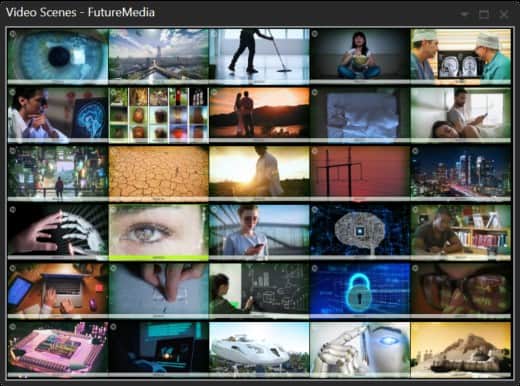
Fast Video Cataloger automatically analyzes each video and creates thumbnails at every scene change. The result is a visual strip showing the content of the entire video at a glance.
Instead of playing through a 60-minute video, you see a row of thumbnails capturing every distinct scene. Spot the one you need visually and click it to jump directly to that exact moment in the video.
This is the fastest method when you remember what the scene looks like but can’t describe it in words — a particular location, a person’s face, a specific setup or angle.
Keyword tagging — find scenes by description
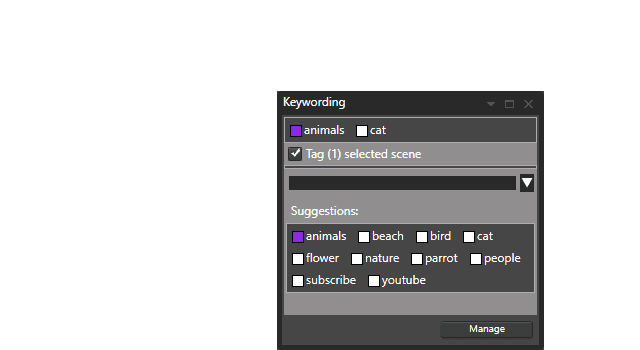
Tag specific moments within your videos with descriptive keywords: “product close-up”, “CEO interview”, “warehouse B-roll”, “sunset timelapse”. Then search for that keyword across your entire library.
In Fast Video Cataloger, you tag individual scenes — not just whole videos. A single 30-minute video might contain 20 tagged scenes, each findable independently. Search for “product close-up” and get results from every video in your catalog that contains a matching scene.
Transcript search — find scenes by what was said
If the scene you’re looking for contains speech, AI transcription is the most precise way to find it. Fast Video Cataloger’s built-in speech-to-text converts video audio to searchable text — no plugin required.
Search for any word or phrase — “quarterly revenue”, “safety procedure”, “customer onboarding” — and the software finds every video where that phrase was spoken. Click the search result to jump to the exact sentence in the video.
This works across your entire library simultaneously. Search once, find every instance across every video.
AI search — find scenes by face, scene type, or object
Fast Video Cataloger 10 adds built-in AI that makes scenes findable automatically, with no manual tagging:
- Find a person — face recognition tags everyone who appears, so you can pull up every scene with a given person in one click
- Scene and object tags — AI labels scene types (indoor, outdoor, beach) and detects objects (car, person, dog) as searchable keywords
Explore all the AI video search features →
Metadata search — find scenes by properties
Search by technical properties: format, resolution, duration, creation date, or custom metadata fields you’ve added. Combine with keyword search: find all 4K clips tagged “interview” from the last 6 months.
Fast Video Cataloger extracts video metadata automatically (codecs, framerate, resolution, duration) and supports XMP metadata. You can also add custom fields for your workflow — project name, client, rating, location.
Step by step: finding a scene with Fast Video Cataloger
- Add your videos — point it at your video folders (local drives, external HDDs, NAS, USB)
- Automatic indexing — thumbnails are extracted at every scene change, metadata is read
- Browse visually — click any video to see its full thumbnail timeline, scan it visually
- Search by keyword — type a keyword in the search window to find matching videos and scenes
- Search by transcript — built-in speech-to-text makes spoken words searchable
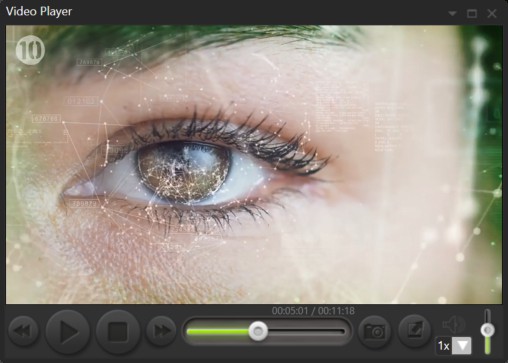
- Click to play — click any thumbnail or search result to jump to that exact moment
Your catalog remains searchable even when the drives with the video files are disconnected. Store videos on external drives and keep the fast, searchable catalog on your SSD.
Works with your video formats
Supports mp4, avi, mov, wmv, mpeg2, mpeg4, flv, and all major formats. Additional format support through DirectShow codecs.
Try it free
30-day fully functional trial. No email required. No cloud account. Just install and start finding your scenes.